Docker Networking Deep Dive: How Containers Communicate
1. Introduction
Welcome to the definitive guide on Docker networking. If you’ve ever wondered exactly how a container gets an IP address, how it reaches the internet, or how port mapping actually works under the hood, this article is for you.
We will bypass the abstract explanations and dive straight into the deep end by examining actual kernel primitives, real lab outputs, and the raw networking components that make container communication possible. This is a comprehensive reference guide designed to take you from a basic understanding to production-ready mastery.
Who is this for? This article is aimed at DevOps engineers, systems administrators, backend developers, and anyone who wants to demystify container networking.
Prerequisites:
- Basic familiarity with Linux networking (IP addresses, subnets)
- A Linux environment (the lab exercises here were performed on an Ubuntu VM)
- Docker installed
- Root or sudo privileges to inspect network interfaces and namespaces
Throughout this deep dive, we will explore the default bridge network, custom user-defined bridges, host networking, the “none” network, and the mechanics of port publishing.
Note: Each section in this document is demonstrated in a fresh lab environment, with no containers running from previous sections. If you are following along and running commands sequentially, remove any existing containers before starting a new section (e.g.,
docker stop web1 web2 && docker rm web1 web2) to avoid name conflicts or unexpected IP reassignments.
2. The Foundation - How Docker Networking Works at the Kernel Level
Before we look at Docker commands, it is crucial to understand that “Docker networking” is not magic; it is an orchestration of existing Linux kernel features. Docker acts as a conductor, wiring together a set of well-established networking primitives.
2.1 Core Components
Linux Network Namespaces A network namespace provides an isolated instance of the networking stack. This includes its own routing tables, iptables rules, network interfaces (like
eth0andlo), and sockets. When you start a Docker container, Docker creates a brand new network namespace for it. This is why a container can bind to port 80 on its internaleth0interface without conflicting with another container doing the same thing.Virtual Ethernet Pairs (veth) Think of a veth pair as a virtual patch cable with two ends. If you send a packet into one end, it comes out the other. Docker uses these to connect a container’s isolated network namespace back to the host machine. One end lives inside the container (usually named
eth0), and the other end lives on the host (e.g.,veth1cff320).Linux Bridges A Linux bridge behaves like a Layer 2 hardware switch, but in software. It connects multiple network interfaces together. Docker uses bridges to connect the host-side ends of all the veth pairs, allowing containers on the same host to talk to each other.
iptables NAT Since containers have private IP addresses (like
172.17.x.x), they cannot route to the internet directly. Docker dynamically configures Linuxiptableswith Network Address Translation (NAT) rules. Specifically, it uses Source NAT (SNAT or MASQUERADE) to allow outgoing traffic, and Destination NAT (DNAT) to route incoming traffic for published ports.
Here is how these components fit together architecturally: 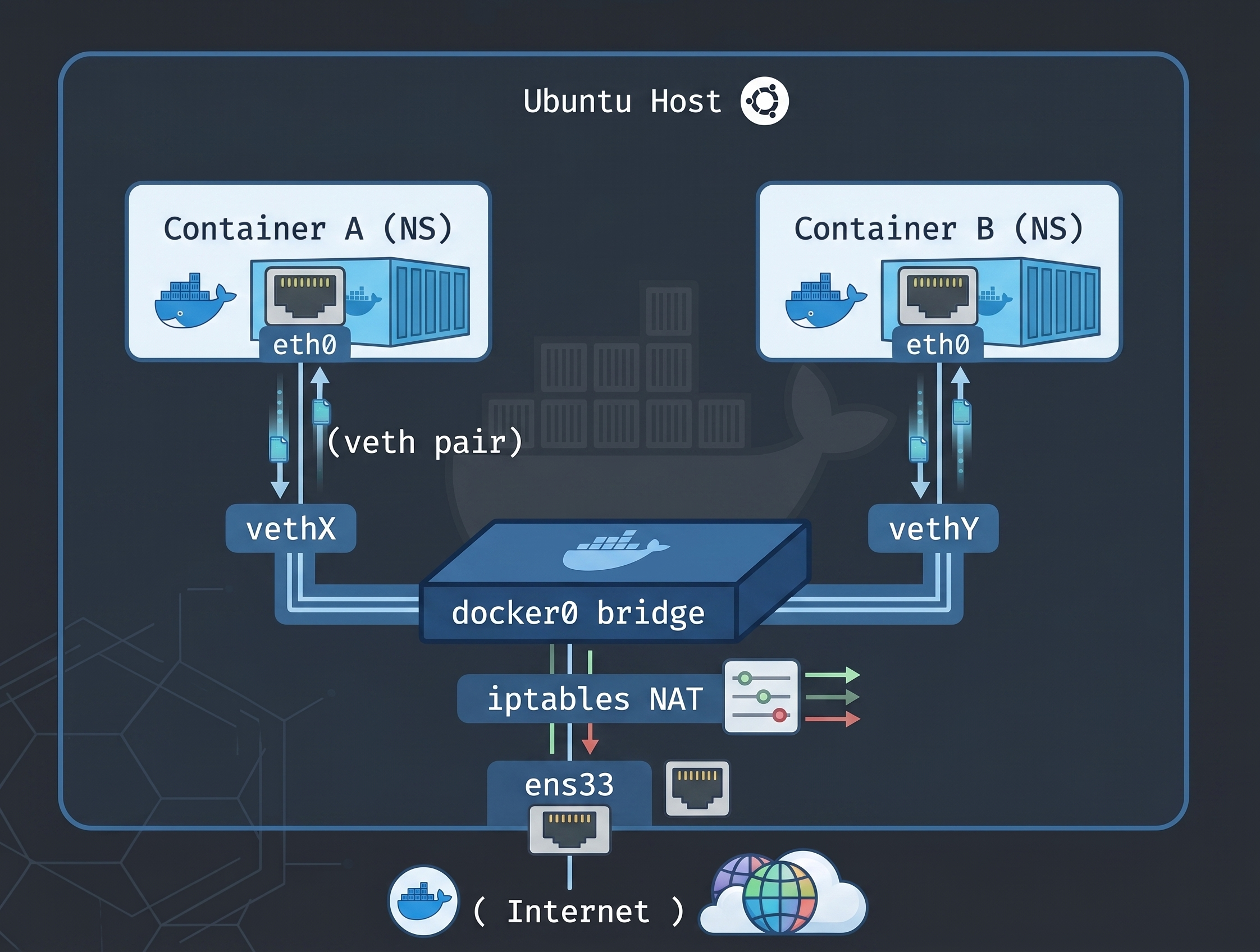
Key Insight: Containers aren’t virtual machines with emulated hardware. They are isolated processes utilizing dedicated network namespaces wired to the host via virtual ethernet cables and software switches.
Summary: Docker networking is not a custom invention. It is built entirely on four existing Linux kernel primitives: (1) Network namespaces provide each container with its own isolated networking stack, including its own interfaces, routing tables, and iptables rules. (2) Virtual Ethernet pairs (veth) act as virtual cables connecting a container’s namespace back to the host. (3) Linux bridges act as virtual Layer 2 switches, allowing multiple containers to communicate on the same subnet. (4) iptables NAT rules handle address translation so containers with private IPs can reach the internet (MASQUERADE/SNAT) and external clients can reach published container ports (DNAT). Docker simply orchestrates these primitives automatically when you run a container.
3. The Default Bridge Network (docker0)
When you install Docker, it automatically creates a default bridge network named bridge, backed by a Linux bridge interface called docker0. Let’s inspect this step-by-step using real lab data.
3.1 Host Network BEFORE Any Container Runs
Before launching any containers, let’s look at the host’s network interfaces. We want to see what the host networking looks like in a clean state.
1
ip addr show
The output reveals three interfaces on our host:
1
2
3
4
5
6
7
8
9
10
11
12
13
14
15
16
17
1: lo: <LOOPBACK,UP,LOWER_UP> mtu 65536 qdisc noqueue state UNKNOWN group default qlen 1000
    link/loopback 00:00:00:00:00:00 brd 00:00:00:00:00:00
    inet 127.0.0.1/8 scope host lo
       valid_lft forever preferred_lft forever
    inet6 ::1/128 scope host noprefixroute
       valid_lft forever preferred_lft forever
2: ens33: <BROADCAST,MULTICAST,UP,LOWER_UP> mtu 1500 qdisc fq_codel state UP group default qlen 1000
    link/ether 00:0c:29:2d:61:a0 brd ff:ff:ff:ff:ff:ff
    altname enp2s1
    inet 192.168.106.137/24 brd 192.168.106.255 scope global dynamic noprefixroute ens33
       valid_lft 1646sec preferred_lft 1646sec
    inet6 fe80::20c:29ff:fe2d:61a0/64 scope link
       valid_lft forever preferred_lft forever
3: docker0: <NO-CARRIER,BROADCAST,MULTICAST,UP> mtu 1500 qdisc noqueue state DOWN group default
    link/ether 9a:07:9e:de:ed:24 brd ff:ff:ff:ff:ff:ff
    inet 172.17.0.1/16 brd 172.17.255.255 scope global docker0
       valid_lft forever preferred_lft forever
Here we see 3 interfaces. lo is the loopback interface. ens33 is the physical NIC at IP 192.168.106.137. The docker0 interface exists at 172.17.0.1/16 but is in a DOWN state (as indicated by the NO-CARRIER flag) because no containers are connected yet. Docker creates this bridge the moment the daemon starts, even before any container runs. Think of it as a virtual switch sitting idle with no cables plugged in.
Next, we inspect the bridge links to see if any interfaces are attached to our bridge devices.
1
bridge link show
The output was completely empty.
1
This output is empty because there are no bridge links - no containers are attached to the docker0 bridge yet.
Now, we will examine the host’s iptables rules to see what network translation rules are pre-configured.
1
sudo iptables -t nat -L -n -v
The output displays the pre-configured iptables rules:
1
2
3
4
5
6
7
8
9
10
11
12
13
14
15
16
17
Chain PREROUTING (policy ACCEPT 2 packets, 842 bytes)
 pkts bytes target     prot opt in     out     source               destination
    2   842 DOCKER     0    --  *      *       0.0.0.0/0            0.0.0.0/0            ADDRTYPE match dst-type LOCAL

Chain INPUT (policy ACCEPT 0 packets, 0 bytes)
 pkts bytes target     prot opt in     out     source               destination

Chain OUTPUT (policy ACCEPT 30 packets, 2184 bytes)
 pkts bytes target     prot opt in     out     source               destination
    0     0 DOCKER     0    --  *      *       0.0.0.0/0           !127.0.0.0/8          ADDRTYPE match dst-type LOCAL

Chain POSTROUTING (policy ACCEPT 30 packets, 2184 bytes)
 pkts bytes target     prot opt in     out     source               destination
    0     0 MASQUERADE  0    --  *      !docker0  172.17.0.0/16        0.0.0.0/0

Chain DOCKER (2 references)
 pkts bytes target     prot opt in     out     source               destination
Let’s break down these chains:
- PREROUTING: Routes incoming traffic destined for local addresses to the
DOCKERchain. - POSTROUTING: This contains the critical
MASQUERADErule. It dictates that any traffic originating from the172.17.0.0/16subnet, and leaving through any interface EXCEPTdocker0, will get its source IP rewritten (source-NAT’d) to the host’s IP. This is exactly how containers can reach the external internet - the same trick your home router uses to connect your private home network to your ISP. - DOCKER chain: Currently empty, but this is where DNAT (Destination NAT) rules for published ports will appear once we start exposing containers.
- Note that the packet counters are currently 0 on the MASQUERADE rule because there is absolutely no container traffic yet.
3.2 After Running a Container
Let’s launch our first container. We run a simple Nginx web server in the background using the default bridge network.
1
docker run -d --name web1 nginx
Docker provisions the container and returns its ID.
1
1cb16be06bb004194768fff78304e862737335f1319f59d6d2fb4bb556c8d803
Now we will run the exact same three commands again and compare the differences.
1
ip addr show
The output now includes newly created virtual interfaces and shows docker0 in an active state.
1
2
3
4
5
6
7
8
9
10
11
12
13
14
15
16
17
18
19
20
21
22
23
1: lo: <LOOPBACK,UP,LOWER_UP> mtu 65536 qdisc noqueue state UNKNOWN group default qlen 1000
    link/loopback 00:00:00:00:00:00 brd 00:00:00:00:00:00
    inet 127.0.0.1/8 scope host lo
       valid_lft forever preferred_lft forever
    inet6 ::1/128 scope host noprefixroute
       valid_lft forever preferred_lft forever
2: ens33: <BROADCAST,MULTICAST,UP,LOWER_UP> mtu 1500 qdisc fq_codel state UP group default qlen 1000
    link/ether 00:0c:29:2d:61:a0 brd ff:ff:ff:ff:ff:ff
    altname enp2s1
    inet 192.168.106.137/24 brd 192.168.106.255 scope global dynamic noprefixroute ens33
       valid_lft 1283sec preferred_lft 1283sec
    inet6 fe80::20c:29ff:fe2d:61a0/64 scope link
       valid_lft forever preferred_lft forever
3: docker0: <BROADCAST,MULTICAST,UP,LOWER_UP> mtu 1500 qdisc noqueue state UP group default
    link/ether ea:28:64:5a:3c:58 brd ff:ff:ff:ff:ff:ff
    inet 172.17.0.1/16 brd 172.17.255.255 scope global docker0
       valid_lft forever preferred_lft forever
    inet6 fe80::e828:64ff:fe5a:3c58/64 scope link
       valid_lft forever preferred_lft forever
4: veth27df88e@if2: <BROADCAST,MULTICAST,UP,LOWER_UP> mtu 1500 qdisc noqueue master docker0 state UP group default
    link/ether 46:3f:04:53:e2:ad brd ff:ff:ff:ff:ff:ff link-netnsid 0
    inet6 fe80::443f:4ff:fe53:e2ad/64 scope link
       valid_lft forever preferred_lft forever
Key changes to highlight:
- The docker0 bridge is now in state UP (previously it was DOWN).
- A new veth interface appeared on the host: veth27df88e@if2. Notice that its master is set to docker0. This is the host side of the virtual ethernet pair connecting our container to the network bridge.
Let’s check the bridge links again.
1
bridge link show
The output now confirms the connection.
1
4: veth27df88e@ens33: <BROADCAST,MULTICAST,UP,LOWER_UP> mtu 1500 master docker0 state forwarding priority 32 cost 2
We now clearly see the veth interface is attached to docker0 as its master. The state forwarding parameter signifies that the bridge port is actively forwarding traffic. Compared to the empty output before, we have essentially “plugged in” our container to the virtual switch.
Now let’s review the iptables configuration.
1
sudo iptables -t nat -L -n -v
This output shows the expanded routing rules for all bridges and the full monitoring stack running on this host.
1
2
3
4
5
6
7
8
9
10
11
12
13
14
15
16
17
Chain PREROUTING (policy ACCEPT 2 packets, 134 bytes)
 pkts bytes target     prot opt in     out     source               destination
    0     0 DOCKER     0    --  *      *       0.0.0.0/0            0.0.0.0/0            ADDRTYPE match dst-type LOCAL

Chain INPUT (policy ACCEPT 0 packets, 0 bytes)
 pkts bytes target     prot opt in     out     source               destination

Chain OUTPUT (policy ACCEPT 435 packets, 32271 bytes)
 pkts bytes target     prot opt in     out     source               destination
    0     0 DOCKER     0    --  *      *       0.0.0.0/0           !127.0.0.0/8          ADDRTYPE match dst-type LOCAL

Chain POSTROUTING (policy ACCEPT 435 packets, 32271 bytes)
 pkts bytes target     prot opt in     out     source               destination
    0     0 MASQUERADE  0    --  *      !docker0  172.17.0.0/16        0.0.0.0/0

Chain DOCKER (2 references)
 pkts bytes target     prot opt in     out     source               destination
The MASQUERADE rule for 172.17.0.0/16 is now backed by an active bridge - this rule is created as soon as the docker0 network exists, regardless of whether any container is attached to it, so its presence here isn’t new. What’s notable is that the DOCKER chain is still empty: that’s because we ran web1 without publishing any ports (no -p flag). If we’d run docker run -d -p 8080:80 –name web1 nginx, this is where you’d see a DNAT rule forwarding host port 8080 to 172.17.0.2:80
3.3 The Container’s Network Perspective
Let’s try checking the routing table from inside.
1
docker exec web1 hostname -I
This successfully reveals the internal IP.
1
172.17.0.2
The container was dynamically assigned the IP 172.17.0.2 from the docker0 bridge subnet (172.17.0.0/16).
Finally, let’s examine the local hosts file.
1
docker exec web1 cat /etc/hosts
The output shows the static entries Docker placed in the file.
1
2
3
4
5
6
7
127.0.0.1	localhost
::1	localhost ip6-localhost ip6-loopback
fe00::	ip6-localnet
ff00::	ip6-mcastprefix
ff02::1	ip6-allnodes
ff02::2	ip6-allrouters
172.17.0.2	1cb16be06bb0
Docker automatically adds an entry mapping the container’s IP (172.17.0.2) to its short container ID (1cb16be06bb0) in /etc/hosts.
3.4 Proving the Veth Pair Connection with nsenter
The output from nsenter exposes the container’s network interfaces directly from the host.
1
2
3
4
5
6
7
8
9
10
11
Container PID: 4644
1: lo: <LOOPBACK,UP,LOWER_UP> mtu 65536 qdisc noqueue state UNKNOWN group default qlen 1000
    link/loopback 00:00:00:00:00:00 brd 00:00:00:00:00:00
    inet 127.0.0.1/8 scope host lo
       valid_lft forever preferred_lft forever
    inet6 ::1/128 scope host
       valid_lft forever preferred_lft forever
2: eth0@if4: <BROADCAST,MULTICAST,UP,LOWER_UP> mtu 1500 qdisc noqueue state UP group default
    link/ether 9a:6b:a2:86:de:a2 brd ff:ff:ff:ff:ff:ff link-netnsid 0
    inet 172.17.0.2/16 brd 172.17.255.255 scope global eth0
       valid_lft forever preferred_lft forever
This is incredibly revealing:
- We can see that the container perceives only two interfaces: lo (loopback) and eth0 - it is completely isolated from the host’s other physical and virtual interfaces.
- Notice the interface name: eth0@if4. The @if4 suffix is crucial. It means this interface is firmly linked to index 4 on the host. If you recall the host ip addr output earlier, index 4 was veth27df88e.
- This definitively PROVES the veth pair topology: the host’s veth27df88e (index 4) is securely bridged to the container’s eth0 (@if4). The virtual cable is physically manifested in the kernel.
3.5 Container Reaching the Internet
We will now verify if the container has outbound internet connectivity by making an HTTP request to an external website.
1
docker exec web1 curl -I https://example.com
The output confirms that the container successfully reached the external website:
1
HTTP/1.1 200 OK
This confirms that the container has outbound internet connectivity. The request leaves the container through the Docker bridge and reaches the external network through the host.
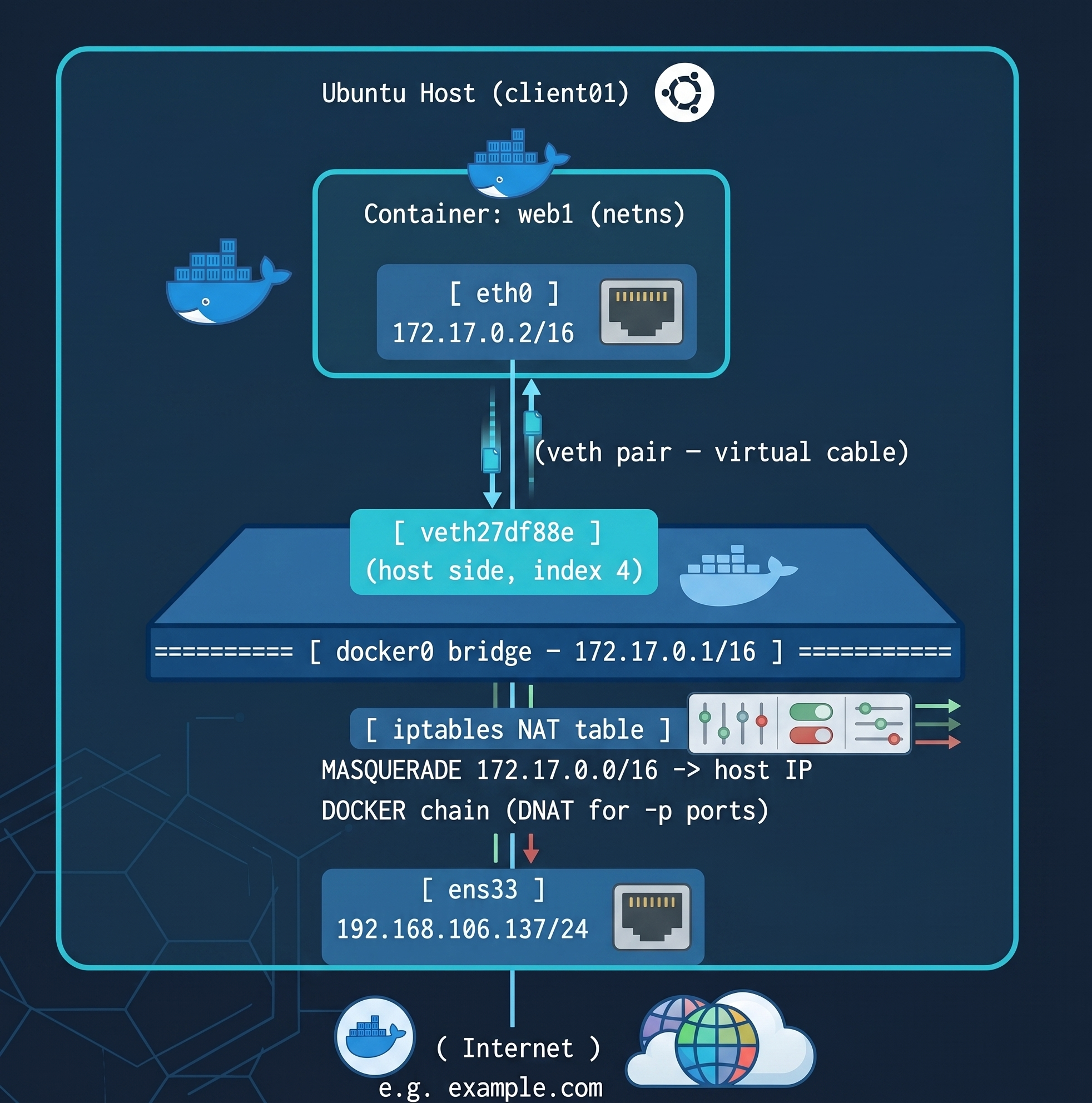
Summary: Before any container runs, the host already has docker0 (a Linux bridge at 172.17.0.1/16 in DOWN state) and a MASQUERADE iptables rule ready for 172.17.0.0/16. When we launched an Nginx container, Docker created a new network namespace for it, assigned it IP 172.17.0.2 from the bridge subnet, and connected it to docker0 via a veth pair (veth27df88e on the host side, eth0 inside the container). We proved this connection using nsenter to enter the container’s namespace and match the interface index (eth0@if4 maps to host index 4, which is veth27df88e). The container successfully reached the internet because the MASQUERADE rule rewrote its private source IP (172.17.0.2) to the host’s own outbound address on egress traffic. Re-running iptables -t nat -L -n -v after the curl request would show the MASQUERADE rule’s packet counters incrementing from their earlier value of 0, confirming the translation was actually applied.
4. Container-to-Container Communication on the Default Bridge
Now that we understand how a single container connects to the host and the internet, let’s explore how two containers communicate with each other over the default docker0 bridge.
First, we run a second Nginx container alongside the first one.
1
2
docker run -d --name web1 nginx
docker run -d --name web2 nginx
Now we retrieve the IP addresses assigned to both containers.
1
2
docker inspect -f '' web1
docker inspect -f '' web2
The output shows their dynamically assigned IPs on the docker0 subnet.
1
2
172.17.0.3
172.17.0.2
Let’s test connectivity by instructing web1 to ping web2 using its IP address.
1
docker exec web1 ping -c 3 172.17.0.2
The ping succeeds with exceptional performance.
1
2
3
4
5
6
7
8
9
omar@client01:~$ docker exec web1 ping -c 3 172.17.0.2
PING 172.17.0.2 (172.17.0.2) 56(84) bytes of data.
64 bytes from 172.17.0.2: icmp_seq=1 ttl=64 time=0.099 ms
64 bytes from 172.17.0.2: icmp_seq=2 ttl=64 time=0.078 ms
64 bytes from 172.17.0.2: icmp_seq=3 ttl=64 time=0.044 ms

--- 172.17.0.2 ping statistics ---
3 packets transmitted, 3 received, 0% packet loss, time 2028ms
rtt min/avg/max/mdev = 0.044/0.073/0.099/0.022 ms
Both containers reside on the docker0 bridge. Packets flow directly through the software bridge-no routing or NAT is required for internal subnet communication. The result is 0% packet loss and blistering sub-millisecond latency.
However, hardcoding IP addresses is a terrible practice since container IPs are highly dynamic. What happens if we try to ping the container by its name?
1
docker exec web1 ping -c 3 web2
The command fails completely.
1
2
omar@client01:~$ docker exec web1 ping -c 3 web2
ping: web2: Name or service not known
The default bridge network has NO embedded DNS server. It simply cannot resolve container names. This is THE critical limitation of the default bridge and why it is wholly unsuited for modern, multi-container production deployments.
To prove that the successful IP-based ping actually traveled through the docker0 bridge, we can capture the raw ICMP packets directly on the interface using tcpdump.
1
sudo tcpdump -i docker0 -n icmp
The packet capture confirms the flow.
1
2
3
4
5
6
7
8
9
omar@client01:~$ sudo tcpdump -i docker0 -n icmp
tcpdump: verbose output suppressed, use -v[v]... for full protocol decode
listening on docker0, link-type EN10MB (Ethernet), snapshot length 262144 bytes
12:48:29.460017 IP 172.17.0.3 > 172.17.0.2: ICMP echo request, id 2, seq 1, length 64
12:48:29.460031 IP 172.17.0.2 > 172.17.0.3: ICMP echo reply, id 2, seq 1, length 64
12:48:30.506099 IP 172.17.0.3 > 172.17.0.2: ICMP echo request, id 2, seq 2, length 64
12:48:30.506127 IP 172.17.0.2 > 172.17.0.3: ICMP echo reply, id 2, seq 2, length 64
12:48:31.530111 IP 172.17.0.3 > 172.17.0.2: ICMP echo request, id 2, seq 3, length 64
12:48:31.530140 IP 172.17.0.2 > 172.17.0.3: ICMP echo reply, id 2, seq 3, length 64
By capturing ICMP packets on the docker0 interface, we conclusively prove that container-to-container traffic flows directly THROUGH the virtual bridge, not around it or via the external network. Each request and reply pair clearly displays the source and destination container IPs. Furthermore, the astonishingly small 14-microsecond gap between the request and reply timestamps (460017 → 460031) demonstrates the immense speed of kernel-level bridge switching.
Key Insight: The default bridge (
docker0) has NO embedded DNS server for resolving container names. Containers on the default bridge can only communicate by IP address, which are dynamic and subject to change. This is the #1 reason why you should almost always use custom bridge networks for multi-container applications.
Summary: Two containers on the default bridge (web1 at 172.17.0.3 and web2 at 172.17.0.2) can communicate by IP address because they share the same docker0 bridge, which acts as a Layer 2 switch forwarding packets between them. We verified this with tcpdump on docker0, capturing the ICMP echo request/reply pairs. However, when we tried to ping by container name (ping web2), it failed with “Name or service not known” because the default bridge does not run Docker’s embedded DNS server. Without DNS, containers must hardcode each other’s IP addresses, which are dynamically assigned and can change on restart. This is why the default bridge is not suitable for production multi-container applications.
5. Custom Bridge Networks - DNS and Isolation
To solve the DNS limitation and improve security posture, Docker allows the creation of user-defined custom bridge networks.
5.1 Create Custom Network
We create a new bridge network named app-network.
1
docker network create --driver bridge app-network
Docker provisions the network and returns the network ID.
1
2
omar@client01:~$ docker network create --driver bridge app-network
c31058550d56cbefc123dde4589877ae8449484df1c13c71b7854032dbaa3c77
5.2 Inspect IPAM (IP Address Management)
Let’s inspect the network to see how Docker assigned its subnet.
1
docker network inspect app-network | jq '.[0].IPAM'
The output reveals the subnet allocation.
1
2
3
4
5
6
7
8
9
10
11
omar@client01:~$ docker network inspect app-network | jq '.[0].IPAM'
{
  "Driver": "default",
  "Options": {},
  "Config": [
    {
      "Subnet": "172.18.0.0/16",
      "Gateway": "172.18.0.1"
    }
  ]
}
Docker intelligently assigned a completely separate, non-overlapping subnet. While docker0 operates on 172.17.0.0/16, our new custom network is placed on 172.18.0.0/16. These are entirely distinct address spaces.
5.3 Run Containers on Different Networks
We launch three containers to test routing and isolation. Two go on the custom network, and one goes on the default bridge.
1
2
3
docker run -d --name frontend --network app-network nginx
docker run -d --name backend --network app-network nginx
docker run -d --name outsider nginx
5.4 Show All Running Containers and Their IPs
We verify the running state of the containers.
1
docker ps
The output confirms they are all running normally.
1
2
3
4
5
omar@client01:~$ docker ps
CONTAINER ID   IMAGE     COMMAND                  CREATED          STATUS          PORTS     NAMES
18d029125d95   nginx     "/docker-entrypoint.…"   33 seconds ago   Up 33 seconds   80/tcp    outsider
66f3d02f8da9   nginx     "/docker-entrypoint.…"   49 seconds ago   Up 48 seconds   80/tcp    backend
db4896bc6fe6   nginx     "/docker-entrypoint.…"   49 seconds ago   Up 49 seconds   80/tcp    frontend
Checking their respective IPs (using inspection):
1
2
3
frontend: 172.18.0.2
backend: 172.18.0.3
outsider: 172.17.0.2
The frontend and backend containers securely received IPs from the 172.18.0.0/16 block (app-network). The outsider container was allocated an IP from the 172.17.0.0/16 block (the default bridge).
5.5 DNS Resolution - Frontend Pings Backend by Name
Now, we test if the custom network resolves the DNS limitation of the default bridge. We ping the backend by its name from the frontend.
1
docker exec frontend ping -c 3 backend
The ping succeeds brilliantly using the hostname!
1
2
3
4
5
6
7
8
9
omar@client01:~$ docker exec frontend ping -c 3 backend
PING backend (172.18.0.3) 56(84) bytes of data.
64 bytes from backend.app-network (172.18.0.3): icmp_seq=1 ttl=64 time=0.033 ms
64 bytes from backend.app-network (172.18.0.3): icmp_seq=2 ttl=64 time=0.062 ms
64 bytes from backend.app-network (172.18.0.3): icmp_seq=3 ttl=64 time=0.070 ms

--- backend ping statistics ---
3 packets transmitted, 3 received, 0% packet loss, time 2048ms
rtt min/avg/max/mdev = 0.033/0.055/0.070/0.015 ms
IT WORKS. Pay close attention to the backend.app-network fully qualified domain name (FQDN) in the response. Docker’s embedded DNS server intercepted the request and automatically resolved the container name to its IP address. This DNS server runs natively at 127.0.0.11 inside the namespace of containers attached to custom networks, providing out-of-the-box service discovery.
5.6 Network Isolation - Outsider Tries to Reach Frontend
Let’s test the security boundary. Can the outsider container reach the frontend container across the different bridges?
1
docker exec outsider ping -c 3 172.18.0.2
The command times out and fails.
1
2
3
4
5
omar@client01:~$ docker exec outsider ping -c 3 172.18.0.2
PING 172.18.0.2 (172.18.0.2) 56(84) bytes of data.

--- 172.18.0.2 ping statistics ---
3 packets transmitted, 0 received, 100% packet loss, time 2038ms
We experience 100% packet loss. The outsider residing on docker0 CANNOT reach the frontend residing on app-network. Docker automatically provisions iptables rules to ensure complete network isolation between disparate bridge networks.
5.7 Proof - Separate Linux Bridges on the Host
To understand how this isolation is physically realized on the host kernel, let’s examine the network interfaces again.
1
ip addr show
The output reveals multiple distinct bridge interfaces.
1
2
3
4
5
6
7
8
9
10
11
12
13
14
15
16
17
18
3: docker0: <BROADCAST,MULTICAST,UP,LOWER_UP> mtu 1500 qdisc noqueue state UP group default
    link/ether 9a:07:9e:de:ed:24 brd ff:ff:ff:ff:ff:ff
    inet 172.17.0.1/16 brd 172.17.255.255 scope global docker0
       valid_lft forever preferred_lft forever
    inet6 fe80::9807:9eff:fede:ed24/64 scope link
       valid_lft forever preferred_lft forever
8: br-c31058550d56: <BROADCAST,MULTICAST,UP,LOWER_UP> mtu 1500 qdisc noqueue state UP group default
    link/ether 46:01:ae:9d:93:7b brd ff:ff:ff:ff:ff:ff
    inet 172.18.0.1/16 brd 172.18.255.255 scope global br-c31058550d56
       valid_lft forever preferred_lft forever
    inet6 fe80::4401:aeff:fe9d:937b/64 scope link
       valid_lft forever preferred_lft forever
9: vethde82a97@if2: <BROADCAST,MULTICAST,UP,LOWER_UP> mtu 1500 qdisc noqueue master br-c31058550d56 state UP group default
    link/ether 6a:68:c7:6a:02:d6 brd ff:ff:ff:ff:ff:ff link-netnsid 0
10: veth2272259@if2: <BROADCAST,MULTICAST,UP,LOWER_UP> mtu 1500 qdisc noqueue master br-c31058550d56 state UP group default
    link/ether 5e:45:53:b4:fc:6f brd ff:ff:ff:ff:ff:ff link-netnsid 1
11: veth40be757@if2: <BROADCAST,MULTICAST,UP,LOWER_UP> mtu 1500 qdisc noqueue master docker0 state UP group default
    link/ether 5a:6a:de:a0:cc:f9 brd ff:ff:ff:ff:ff:ff link-netnsid 2
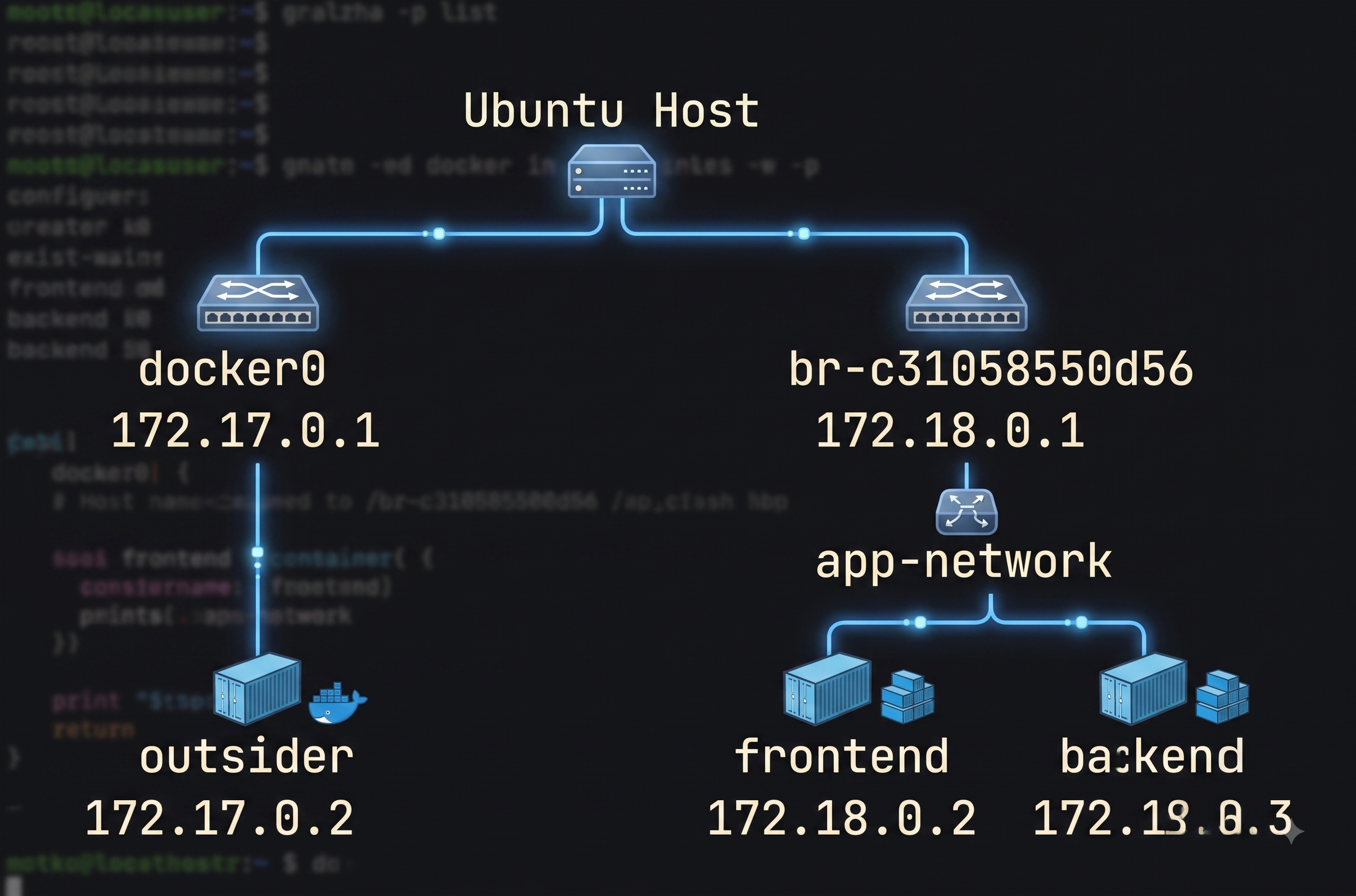
We can clearly see two distinct software switches: docker0 and br-c31058550d56.
Let’s check the bridge port assignments.
1
bridge link show
The output maps every veth to its respective master bridge.
1
2
3
9: vethde82a97@ens33: <BROADCAST,MULTICAST,UP,LOWER_UP> mtu 1500 master br-c31058550d56 state forwarding priority 32 cost 2
10: veth2272259@ens33: <BROADCAST,MULTICAST,UP,LOWER_UP> mtu 1500 master br-c31058550d56 state forwarding priority 32 cost 2
11: veth40be757@ens33: <BROADCAST,MULTICAST,UP,LOWER_UP> mtu 1500 master docker0 state forwarding priority 32 cost 2
This perfectly explains the veth-to-bridge mapping:
vethde82a97is mastered tobr-c31058550d56(this is the frontend container).veth2272259is mastered tobr-c31058550d56(this is the backend container).veth40be757is mastered todocker0(this is the outsider container).
Here is the exact topology mapping on the host:
Key Insight:
docker network createprovisions an entirely separate Linux bridge. It’s not just a metadata label inside Docker - it’s a physically isolated virtual switch in the kernel.
Summary: Creating a custom bridge network (app-network) with docker network create solved both limitations of the default bridge. First, DNS resolution worked immediately: pinging backend by name from frontend resolved to 172.18.0.3 via Docker’s embedded DNS server running at 127.0.0.11 inside the container namespace. Second, network isolation was automatically enforced: outsider (on the default bridge at 172.17.0.2) could not reach frontend (on app-network at 172.18.0.2), resulting in 100% packet loss. We proved this isolation is physical, not just logical. On the host, docker network create provisioned an entirely new Linux bridge (br-c31058550d56 at 172.18.0.1/16), completely separate from docker0. The veth interfaces confirmed the mapping: frontend and backend were wired to br-c31058550d56, while outsider remained wired to docker0. Because Docker automatically inserts iptables rules that block forwarding between the two bridges, traffic between them is dropped at the kernel level — even though both bridges exist on the same host.
6. Host Network Mode - No Isolation
The --network host flag bypasses network isolation entirely. The container does not get its own network namespace; instead, it shares the host’s networking stack directly. Let’s see the consequences of this.
6.1 Run Nginx with Host Networking
We attempt to run an Nginx container directly on the host network.
1
docker run -d --name web-host --network host nginx
Docker accepts the command.
1
2
omar@client01:~$ docker run -d --name web-host --network host nginx
ac5d2ab03bebce9fd4a860cf575f499be1b08d6c5705b73c239d2b2838733b7d
6.2 Check If It’s Running
Let’s check the container status.
1
docker ps
The output shows no running containers.
1
2
omar@client01:~$ docker ps
CONTAINER ID   IMAGE     COMMAND   CREATED   STATUS    PORTS     NAMES
The output is EMPTY! The container started and immediately crashed/exited.
6.3 Check the Logs to Find Out Why
We need to inspect the container logs to determine the cause of the failure.
1
docker logs web-host
The logs reveal a classic port conflict.
1
2
3
4
5
6
7
8
9
10
11
12
13
14
15
16
17
18
19
20
21
22
23
24
25
26
27
omar@client01:~$ docker logs web-host
/docker-entrypoint.sh: /docker-entrypoint.d/ is not empty, will attempt to perform configuration
/docker-entrypoint.sh: Looking for shell scripts in /docker-entrypoint.d/
/docker-entrypoint.sh: Launching /docker-entrypoint.d/10-listen-on-ipv6-by-default.sh
10-listen-on-ipv6-by-default.sh: info: Getting the checksum of /etc/nginx/conf.d/default.conf
10-listen-on-ipv6-by-default.sh: info: Enabled listen on IPv6 in /etc/nginx/conf.d/default.conf
/docker-entrypoint.sh: Sourcing /docker-entrypoint.d/15-local-resolvers.envsh
/docker-entrypoint.sh: Launching /docker-entrypoint.d/20-envsubst-on-templates.sh
/docker-entrypoint.sh: Launching /docker-entrypoint.d/30-tune-worker-processes.sh
/docker-entrypoint.sh: Configuration complete; ready for start up
2026/08/11 10:13:01 [emerg] 1#1: bind() to 0.0.0.0:80 failed (98: Address already in use)
nginx: [emerg] bind() to 0.0.0.0:80 failed (98: Address already in use)
2026/08/11 10:13:01 [notice] 1#1: try again to bind() after 500ms
2026/08/11 10:13:01 [emerg] 1#1: bind() to 0.0.0.0:80 failed (98: Address already in use)
nginx: [emerg] bind() to 0.0.0.0:80 failed (98: Address already in use)
2026/08/11 10:13:01 [notice] 1#1: try again to bind() after 500ms
2026/08/11 10:13:01 [emerg] 1#1: bind() to 0.0.0.0:80 failed (98: Address already in use)
nginx: [emerg] bind() to 0.0.0.0:80 failed (98: Address already in use)
2026/08/11 10:13:01 [notice] 1#1: try again to bind() after 500ms
2026/08/11 10:13:01 [emerg] 1#1: bind() to 0.0.0.0:80 failed (98: Address already in use)
nginx: [emerg] bind() to 0.0.0.0:80 failed (98: Address already in use)
2026/08/11 10:13:01 [notice] 1#1: try again to bind() after 500ms
2026/08/11 10:13:01 [emerg] 1#1: bind() to 0.0.0.0:80 failed (98: Address already in use)
nginx: [emerg] bind() to 0.0.0.0:80 failed (98: Address already in use)
2026/08/11 10:13:01 [notice] 1#1: try again to bind() after 500ms
2026/08/11 10:13:01 [emerg] 1#1: still could not bind()
nginx: [emerg] still could not bind()
Nginx repeatedly attempted to bind to 0.0.0.0:80 five times (with 500ms retries), and then finally gave up and killed the process. Why? Because the HOST operating system already has a native process running that is actively listening on port 80.
6.4 Prove the Host’s Nginx Is Occupying Port 80
Let’s check the active listening sockets on the host.
1
sudo ss -tlnp | grep ':80'
The output confirms our suspicion.
1
2
omar@client01:~$ sudo ss -tlnp | grep ':80'
LISTEN 0      511          0.0.0.0:80         0.0.0.0:*    users:(("nginx",pid=1495,fd=6),("nginx",pid=1494,fd=6),("nginx",pid=1492,fd=6))
We can further verify this by checking the systemd service status on the host.
1
sudo systemctl status nginx
The native host service is indeed running.
1
2
3
4
5
6
7
8
9
10
11
12
 nginx.service - nginx - high performance web server
     Loaded: loaded (/usr/lib/systemd/system/nginx.service; enabled; preset: enabled)
     Active: active (running) since Tue 2026-08-11 12:17:58 EEST; 59min ago
       Docs: https://nginx.org/en/docs/
   Main PID: 1492 (nginx)
      Tasks: 3 (limit: 4541)
     Memory: 3.6M (peak: 4.9M)
        CPU: 14ms
     CGroup: /system.slice/nginx.service
             ├─1492 "nginx: master process /usr/sbin/nginx -c /etc/nginx/nginx.conf"
             ├─1494 "nginx: worker process"
             └─1495 "nginx: worker process"
Host mode: 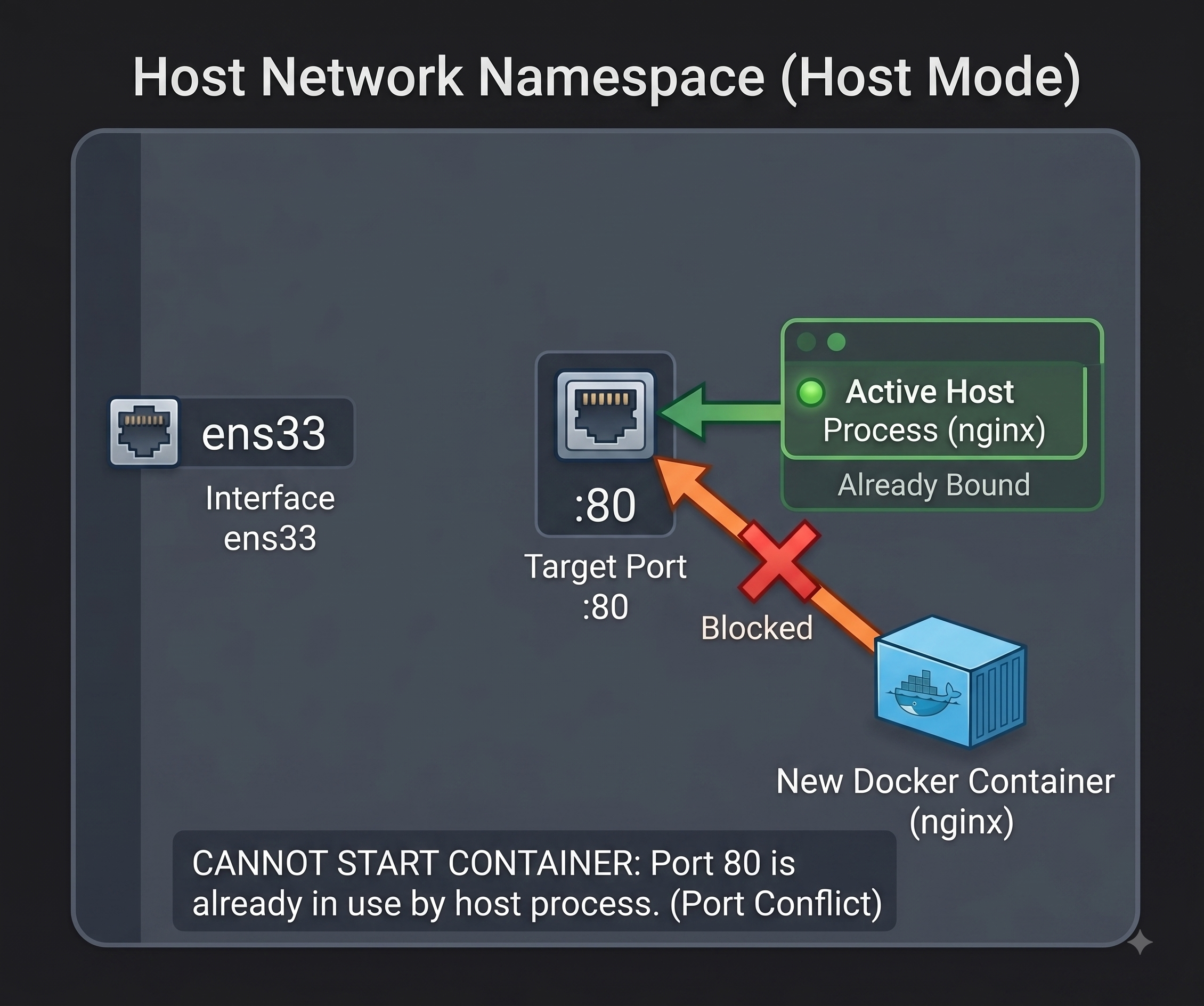
6.5 Fix - Stop Host Nginx, Re-run Container
To resolve this conflict, we must terminate the host’s Nginx service and then relaunch our container.
1
2
sudo systemctl stop nginx
sudo systemctl status nginx
The host service is stopped.
1
2
3
4
5
6
omar@client01:~$ sudo systemctl stop nginx
omar@client01:~$ sudo systemctl status nginx
○ nginx.service - nginx - high performance web server
     Loaded: loaded (/usr/lib/systemd/system/nginx.service; enabled; preset: enabled)
     Active: inactive (dead) since Tue 2026-08-11 13:17:22 EEST; 6s ago
   Duration: 59min 23.873s
Now we clean up the failed container and run it again.
1
2
docker rm web-host
docker run -d --name web-host --network host nginx
The container starts successfully.
1
2
3
omar@client01:~$ docker rm web-host
omar@client01:~$ docker run -d --name web-host --network host nginx
dd94d093076b1d74ed26064f1596019c5eb1ced3f07d607fffc8a04b5523818f
We verify connectivity by querying the localhost on port 80.
1
curl localhost:80
The Nginx container responds correctly.
1
2
3
4
5
6
7
omar@client01:~$ curl localhost:80
<!DOCTYPE html>
<html>
<head>
<title>Welcome to nginx!</title>
...
</html>
It works seamlessly now because the port is no longer contested.
6.6 Proving Identical Network Namespaces
To conclusively prove that host mode eliminates isolation, we will inspect the container’s network namespace using nsenter as we did earlier.
1
sudo nsenter -t $CONTAINER_PID -n ip addr show
The output reveals the network interfaces from the container’s perspective.
1
2
3
4
5
6
7
8
9
10
11
12
13
14
15
16
17
18
19
20
omar@client01:~$ sudo nsenter -t $CONTAINER_PID -n ip addr show
1: lo: <LOOPBACK,UP,LOWER_UP> mtu 65536 qdisc noqueue state UNKNOWN group default qlen 1000
    link/loopback 00:00:00:00:00:00 brd 00:00:00:00:00:00
    inet 127.0.0.1/8 scope host lo
       valid_lft forever preferred_lft forever
    inet6 ::1/128 scope host noprefixroute
       valid_lft forever preferred_lft forever
2: ens33: <BROADCAST,MULTICAST,UP,LOWER_UP> mtu 1500 qdisc fq_codel state UP group default qlen 1000
    link/ether 00:0c:29:2d:61:a0 brd ff:ff:ff:ff:ff:ff
    altname enp2s1
    inet 192.168.106.137/24 brd 192.168.106.255 scope global dynamic noprefixroute ens33
       valid_lft 1706sec preferred_lft 1706sec
    inet6 fe80::20c:29ff:fe2d:61a0/64 scope link
       valid_lft forever preferred_lft forever
3: docker0: <NO-CARRIER,BROADCAST,MULTICAST,UP> mtu 1500 qdisc noqueue state DOWN group default
    link/ether 9a:07:9e:de:ed:24 brd ff:ff:ff:ff:ff:ff
    inet 172.17.0.1/16 brd 172.17.255.255 scope global docker0
       valid_lft forever preferred_lft forever
    inet6 fe80::9807:9eff:fede:ed24/64 scope link
       valid_lft forever preferred_lft forever
Now let’s compare this directly with running ip addr show natively on the host itself.
1
ip addr show
The output from the host natively.
1
2
3
4
5
6
7
8
9
10
11
12
13
14
15
16
17
18
19
20
omar@client01:~$ ip addr show
1: lo: <LOOPBACK,UP,LOWER_UP> mtu 65536 qdisc noqueue state UNKNOWN group default qlen 1000
    link/loopback 00:00:00:00:00:00 brd 00:00:00:00:00:00
    inet 127.0.0.1/8 scope host lo
       valid_lft forever preferred_lft forever
    inet6 ::1/128 scope host noprefixroute
       valid_lft forever preferred_lft forever
2: ens33: <BROADCAST,MULTICAST,UP,LOWER_UP> mtu 1500 qdisc fq_codel state UP group default qlen 1000
    link/ether 00:0c:29:2d:61:a0 brd ff:ff:ff:ff:ff:ff
    altname enp2s1
    inet 192.168.106.137/24 brd 192.168.106.255 scope global dynamic noprefixroute ens33
       valid_lft 1699sec preferred_lft 1699sec
    inet6 fe80::20c:29ff:fe2d:61a0/64 scope link
       valid_lft forever preferred_lft forever
3: docker0: <NO-CARRIER,BROADCAST,MULTICAST,UP> mtu 1500 qdisc noqueue state DOWN group default
    link/ether 9a:07:9e:de:ed:24 brd ff:ff:ff:ff:ff:ff
    inet 172.17.0.1/16 brd 172.17.255.255 scope global docker0
       valid_lft forever preferred_lft forever
    inet6 fe80::9807:9eff:fede:ed24/64 scope link
       valid_lft forever preferred_lft forever
The output is IDENTICAL. Both commands reveal the exact same interfaces (lo, ens33, docker0), the same IPs, and the same MAC addresses. Notice that absolutely no veth pair was created for this container. The container is utilizing the host’s primary network namespace directly, bypassing Docker’s network abstractions entirely.
Key Insight: Bridge mode gives the container its own network namespace, avoiding port conflicts.
hostmode shares the namespace, maximizing performance by eliminating NAT overhead, but requires careful port management. Use host mode for monitoring tools (like Node Exporter) or highly performance-sensitive edge applications.
Summary: With --network host, Docker does not create a separate network namespace for the container. Instead, the container directly shares the host’s networking stack. This means no veth pair is created, no bridge is involved, and no NAT translation occurs. We saw the consequence firsthand: the host was already running Nginx on port 80 (PIDs 1492, 1494, 1495), so when the containerized Nginx also tried to bind() to 0.0.0.0:80, it failed with “Address already in use” because both processes were competing for the same port in the same namespace. In bridge mode, this conflict would never happen because the container has its own isolated namespace where port 80 is independent from the host’s port 80. After stopping the host’s Nginx service and relaunching the container, it worked. We confirmed the shared namespace by running nsenter on the container’s PID and comparing its ip addr show output with the host’s, both outputs were identical: same lo, same ens33 at 192.168.106.137, same docker0. The tradeoff is clear: host mode provides maximum network performance (zero NAT overhead) at the cost of zero network isolation.
7. None Network Mode - Complete Disconnection
Sometimes, you want a container to have absolutely no network access, creating an air-gapped processing environment.
We launch an Alpine container utilizing the none network driver.
1
docker run -d --name isolated --network none alpine sleep 3600
Docker pulls the image and launches the isolated process.
1
2
3
4
5
6
7
8
9
omar@client01:~$ docker run -d --name isolated --network none alpine sleep 3600
Unable to find image 'alpine:latest' locally
latest: Pulling from library/alpine
55afa1ecc21d: Pull complete
f5124fb579e2: Download complete
56dceff11b33: Download complete
Digest: sha256:28bd5fe8b56d1bd048e5babf5b10710ebe0bae67db86916198a6eec434943f8b
Status: Downloaded newer image for alpine:latest
5a53982c6c2dadae57124739eb45bff183330fa3fce0d21305bdc030bf13e6e7
Let’s verify its running state.
1
docker ps
Notice that the network ports column is entirely empty for this container.
1
2
3
omar@client01:~$ docker ps
CONTAINER ID   IMAGE     COMMAND        CREATED         STATUS         PORTS     NAMES
5a53982c6c2d   alpine    "sleep 3600"   2 seconds ago   Up 2 seconds             isolated
We inspect the network interfaces available from inside this completely isolated container.
1
docker exec isolated ip addr show
The container only has access to a loopback interface.
1
2
3
4
5
6
7
omar@client01:~$ docker exec isolated ip addr show
1: lo: <LOOPBACK,UP,LOWER_UP> mtu 65536 qdisc noqueue state UNKNOWN qlen 1000
    link/loopback 00:00:00:00:00:00 brd 00:00:00:00:00:00
    inet 127.0.0.1/8 scope host lo
       valid_lft forever preferred_lft forever
    inet6 ::1/128 scope host
       valid_lft forever preferred_lft forever
The output reveals only the lo loopback interface. There is no eth0 and no veth connection back to the host.
Let’s test its inability to reach external networks.
1
docker exec isolated ping -c 1 8.8.8.8
The ping fails instantly due to the lack of routing capabilities.
1
2
3
omar@client01:~$ docker exec isolated ping -c 1 8.8.8.8
PING 8.8.8.8 (8.8.8.8): 56 data bytes
ping: sendto: Network unreachable
Key Insight: Use
--network nonefor security-critical jobs that strictly perform local processing-such as batch processing, file conversion, or cryptographic key generation operations-where network access introduces unnecessary attack vectors.
Summary: With --network none, Docker creates a dedicated network namespace for the container but does not provide it with any external network interfaces. The container retains only its loopback (lo) interface, with no eth0, veth pair, or connection to a Docker bridge. When we inspected the container with ip addr show, only lo was present. When we attempted to ping 8.8.8.8, the kernel immediately returned Network unreachable because the namespace has no external interface or route through which the packet could be sent. The none network mode is therefore useful for workloads that do not require network communication and benefit from strong network isolation, such as isolated batch processing, file conversion, or other security-sensitive local computations.
8. Conclusion
Docker networking may seem like magic from the outside, but underneath the abstraction, it relies entirely on robust, battle-tested Linux kernel primitives: namespaces for absolute isolation, veth pairs for physical connectivity, bridges for switching, and iptables for routing and NAT.
By understanding these fundamental foundations, debugging complex container connectivity issues transforms from a frustrating guessing game into a methodical networking exercise. You now intimately know why the default bridge fails at DNS, why host mode causes immediate port conflicts, and exactly how traffic flows from the external internet, through iptables, and directly down into your container’s isolated eth0 interface.