Getting Started with Proxmox VE
1. Introduction
1.1 What is Proxmox VE?
Proxmox Virtual Environment is a complete, open-source server management platform for enterprise virtualization. It tightly integrates the KVM hypervisor and Linux Containers (LXC), software-defined storage and networking functionality, on a single platform. With the integrated web-based user interface you can manage VMs and containers, high availability for clusters, or the integrated disaster recovery tools with ease.
KVM (Kernel-based Virtual Machine) : A hypervisor built directly into the Linux kernel. KVM turns your Linux server into a full hypervisor, allowing you to run completely isolated virtual machines, each with its own virtual CPU, RAM, disk, and network interfaces. Because KVM is part of the kernel itself, it delivers near-native performance without the overhead of a separate hypervisor layer.
LXC (Linux Containers): An OS-level virtualization technology that allows you to run multiple isolated Linux systems (containers) on a single host.
What makes Proxmox VE special is that it brings both of these technologies under one unified web-based management interface. You don’t need separate tools for VMs and containers everything is managed from the same dashboard, with the same backup system, the same networking, and the same storage backend.
Key advantages of Proxmox VE:
Truly Free: Unlike VMware, there is no feature-gating behind paid licenses. Clustering, live migration, backups, ZFS, Ceph. everything is available for free. An optional enterprise subscription provides access to the stable repository and professional support, but it is not required.
Enterprise Storage Built-in: Proxmox natively supports ZFS (with snapshots, compression, and replication) and Ceph (distributed storage) right out of the box — no add-ons needed.
Powerful Backup System: The integrated backup system supports full, differential, and snapshot-based backups. Pair it with Proxmox Backup Server for deduplication, encryption, and incremental backups.
Active Community : Proxmox has a massive community, especially in the homelab space. Forums, subreddits, YouTube tutorials, and helper scripts (like the popular Proxmox VE Helper Scripts) make getting started easy.
1.2 Key Features
- Web-based management : Full control from your browser at
https://<ip>:8006 - KVM virtual machines : Run any OS with full hardware virtualization
- LXC containers : Lightweight, near-native performance Linux containers
- Clustering : Join up to 32 nodes for high availability and load distribution
- Live migration : Move running VMs between nodes with zero downtime
- ZFS integration : Enterprise-grade filesystem with snapshots, compression, and replication
- Ceph storage : Built-in distributed storage for hyper-converged setups
- Firewall : Per-datacenter, per-node, per-VM, and per-container firewall rules
- Scheduled backups : Automated backup jobs with retention policies
- Two-Factor Authentication : TOTP, YubiKey, and WebAuthn support
- REST API : Automate everything with the full RESTful API
- Cloud-Init support : Automate VM provisioning and configuration
1.3 What We’ll Cover
In this guide, we will walk through the complete getting-started workflow:
- Installing Proxmox VE from the ISO on a bare-metal server (or inside a VM for testing)
- Navigating the web dashboard and understanding the interface layout
- Creating your first Virtual Machine from an uploaded ISO image
- Creating your first Container from a downloaded template
Prerequisites:
- A dedicated machine or VMware/VirtualBox VM with at least 4 GB RAM, 2 CPU cores, and 40 GB storage
- The Proxmox VE ISO image downloaded from proxmox.com/downloads
- Basic familiarity with networking concepts (IP addresses, gateways)
Note: This guide uses Proxmox VE 9.2. The screenshots and steps may vary slightly for other versions, but the overall process remains the same.
2. Installing Proxmox VE
The installation process for Proxmox VE is straightforward — the ISO comes with a graphical installer that handles partitioning, package installation, and initial configuration.
2.1 Boot from the ISO
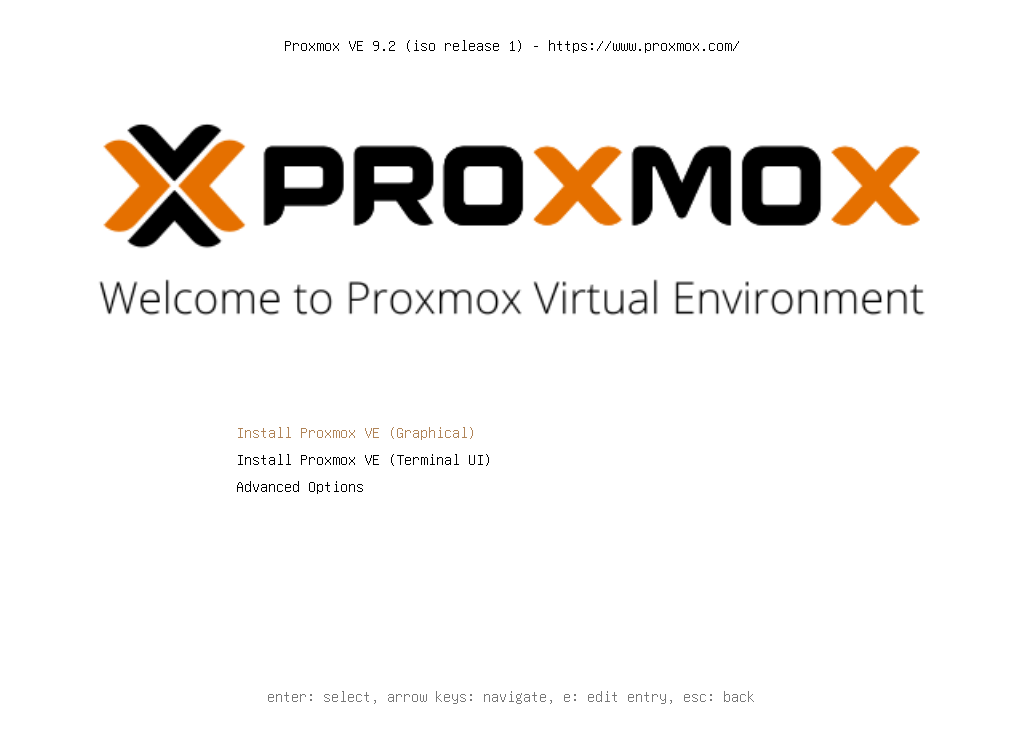
Select “Install Proxmox VE (Graphical)” and press Enter to launch the graphical installer.
2.2 Select the Target Hard Disk
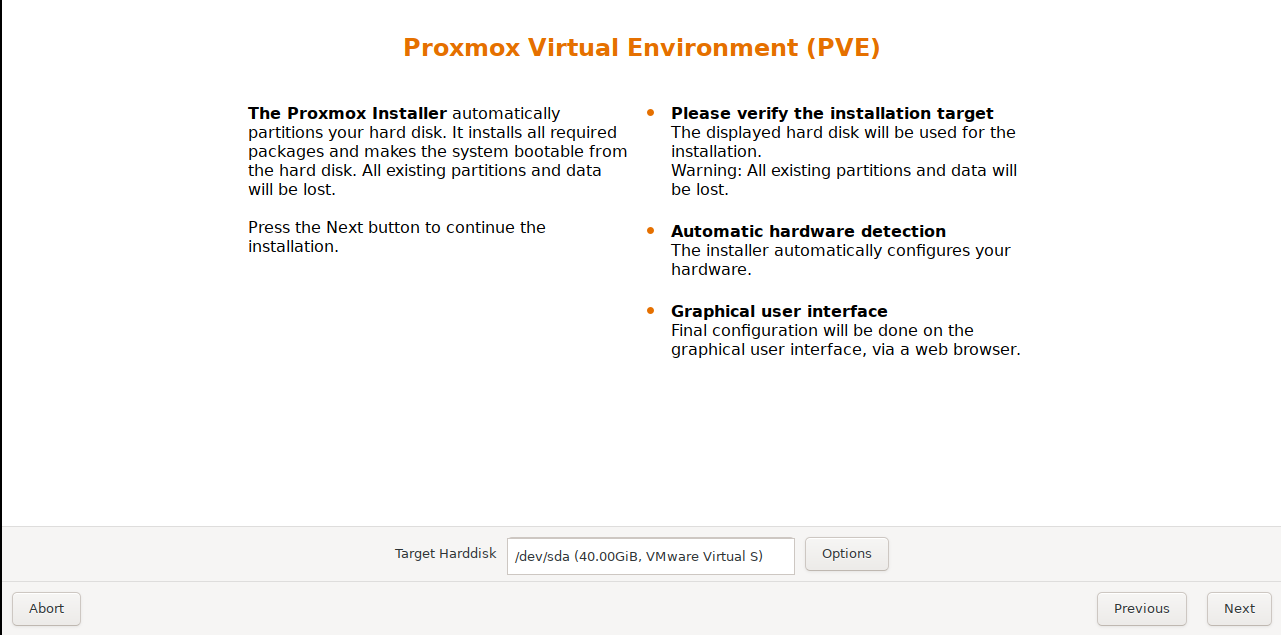
The installer will detect your available disks and display the welcome screen. At the bottom, you can see the Target Harddisk where Proxmox will be installed.
Click Options if you need to change the filesystem (ext4, xfs, ZFS, or Btrfs). For most users, the default ext4 is a solid choice.
Warning: The installer will format the selected disk and erase all existing data. Make sure you have selected the correct disk and backed up any important data.
2.3 Set the Administration Password and Email
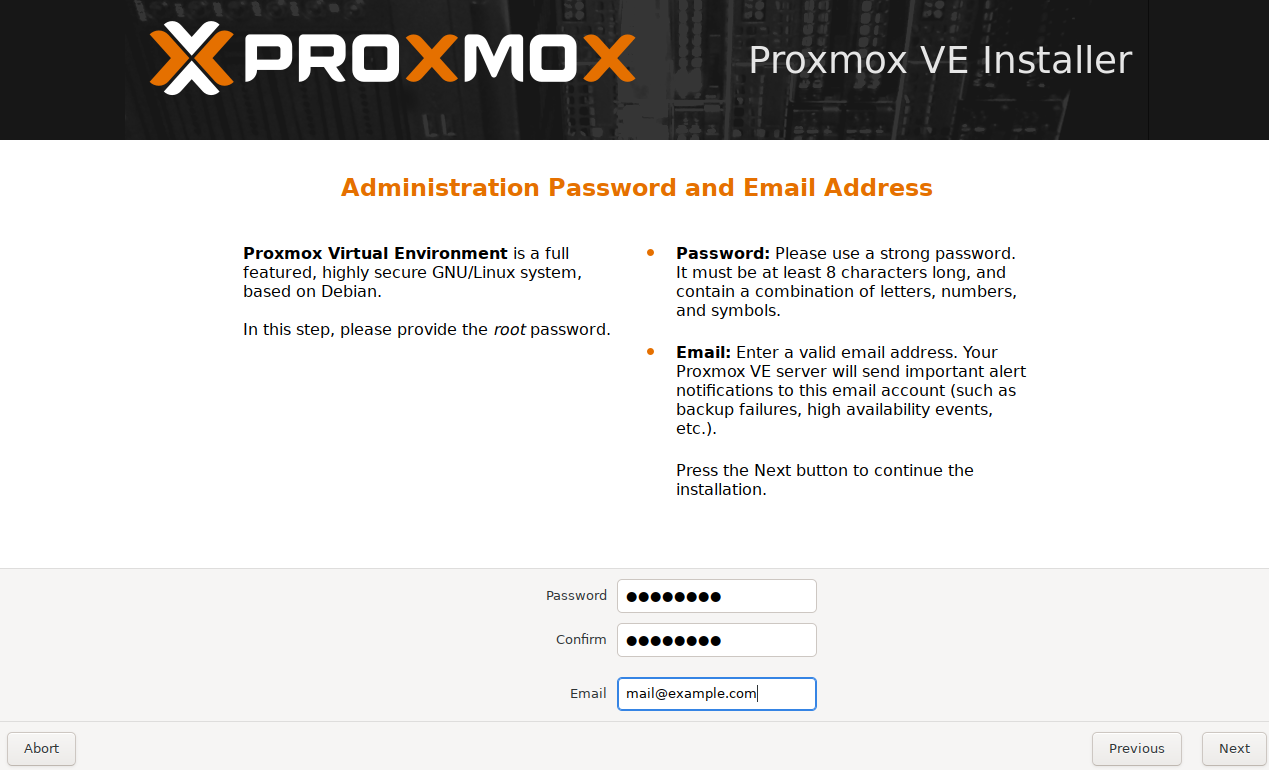
Next, the installer asks you to set the root password and an email address. The root password is what you will use to log in to both the Proxmox shell and the web interface. The email is used for important system alert notifications (backup failures, HA events, etc.).
- Use a strong password — at least 8 characters, mixing letters, numbers, and symbols.
- The email can be a personal address; it is used for local alert notifications.
2.4 Configure the Management Network
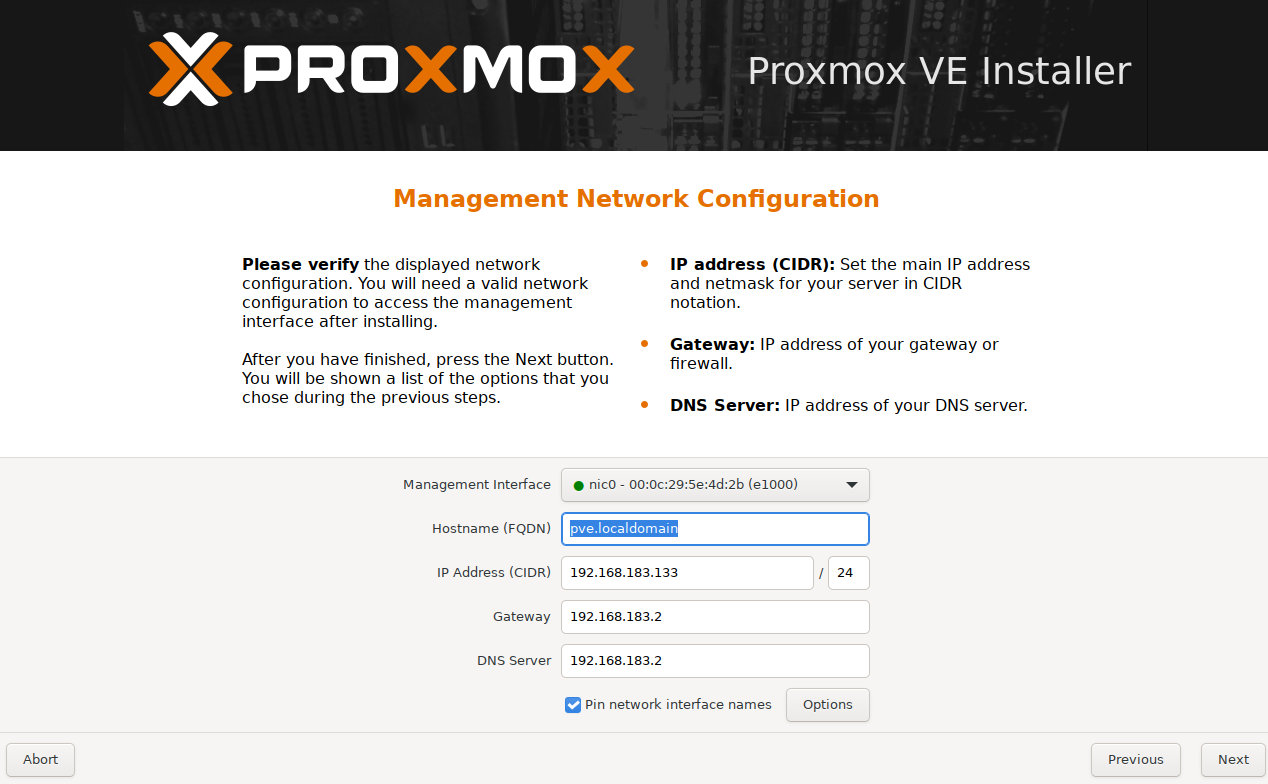
This is the most important step. You need to configure the network interface that Proxmox VE will use for its management web interface. Fill in the following fields:
| Field | Description |
|---|---|
| Management Interface | The NIC Proxmox will use. If you only have one, it will be auto-selected. |
| Hostname (FQDN) | A fully qualified domain name, e.g., pve.localdomain. |
| IP Address (CIDR) | The static IP for this Proxmox node, e.g., 192.168.183.133/24. |
| Gateway | Your network’s default gateway (usually your router), e.g., 192.168.183.2. |
| DNS Server | DNS server to use for name resolution, e.g., 192.168.183.2. |
Tip: Use a static IP address that is outside your router’s DHCP range to avoid IP conflicts. You will use this IP to access the Proxmox web interface after installation.
2.5 Review the Summary and Install
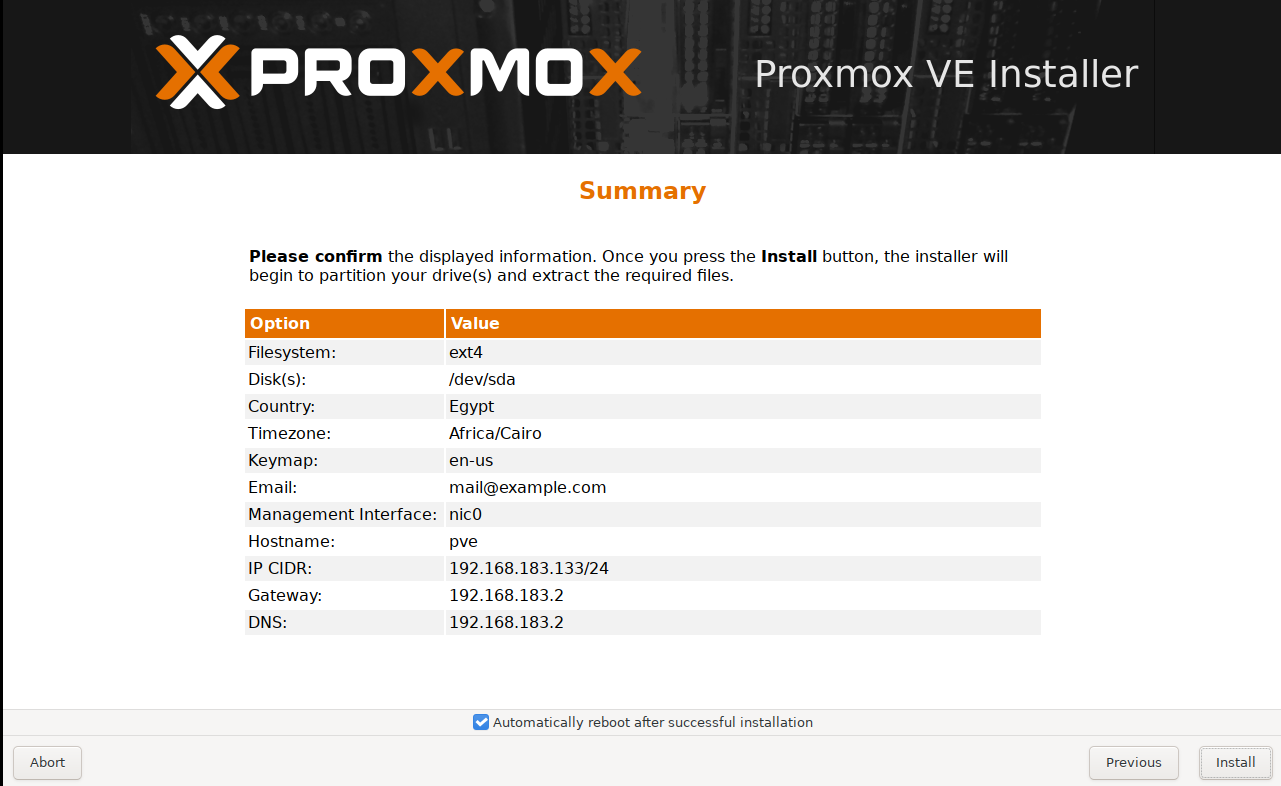
The installer presents a final summary of all your configuration choices. Review everything carefully:
- Filesystem: ext4
- Disk: /dev/sda
- Country / Timezone: Egypt / Africa/Cairo
- Hostname: pve
- IP CIDR: 192.168.183.133/24
- Gateway / DNS: 192.168.183.2
If everything looks correct, check “Automatically reboot after successful installation” and click Install. The installation process takes a few minutes.
2.6 First Boot and Login
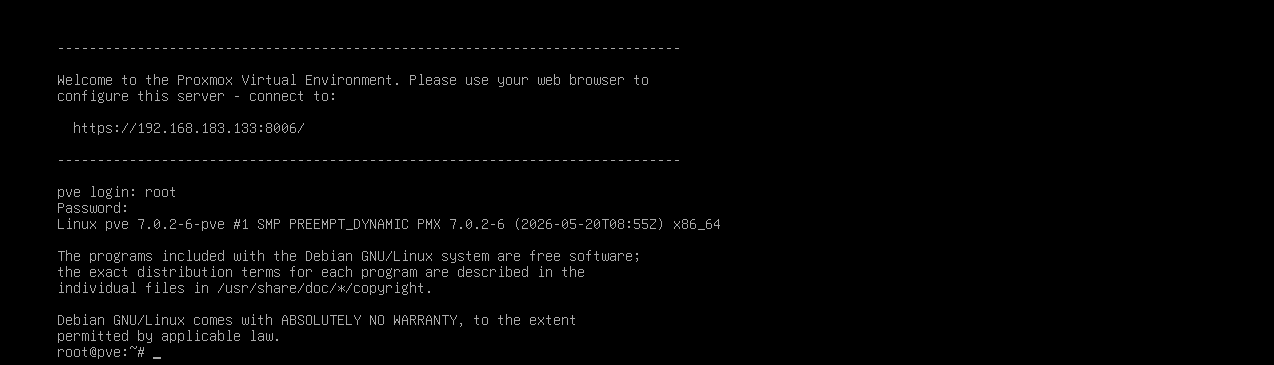
After the installation completes and the system reboots, you will see the Proxmox VE console displaying a welcome message with the URL to access the web interface:
1
https://192.168.183.133:8006/
You can log in to the console using root and the password you set during installation.
Note: The web interface uses a self-signed SSL certificate by default, so your browser will show a security warning. This is normal — just accept the warning and proceed.
Summary: The Proxmox VE installation process involves six steps: booting from the ISO, selecting a target disk and filesystem, setting the root password and email, configuring the management network with a static IP, reviewing the summary, and completing the installation. After reboot, the system displays the management URL (https://<ip>:8006/) on the console, which you use to access the web interface from any browser on the same network.
3. Dashboard Overview
Open your browser and navigate to https://<your-proxmox-ip>:8006/. Log in with:
- User name:
root - Password: the password you set during installation
- Realm:
Linux PAM standard authentication
3.1 The Datacenter View
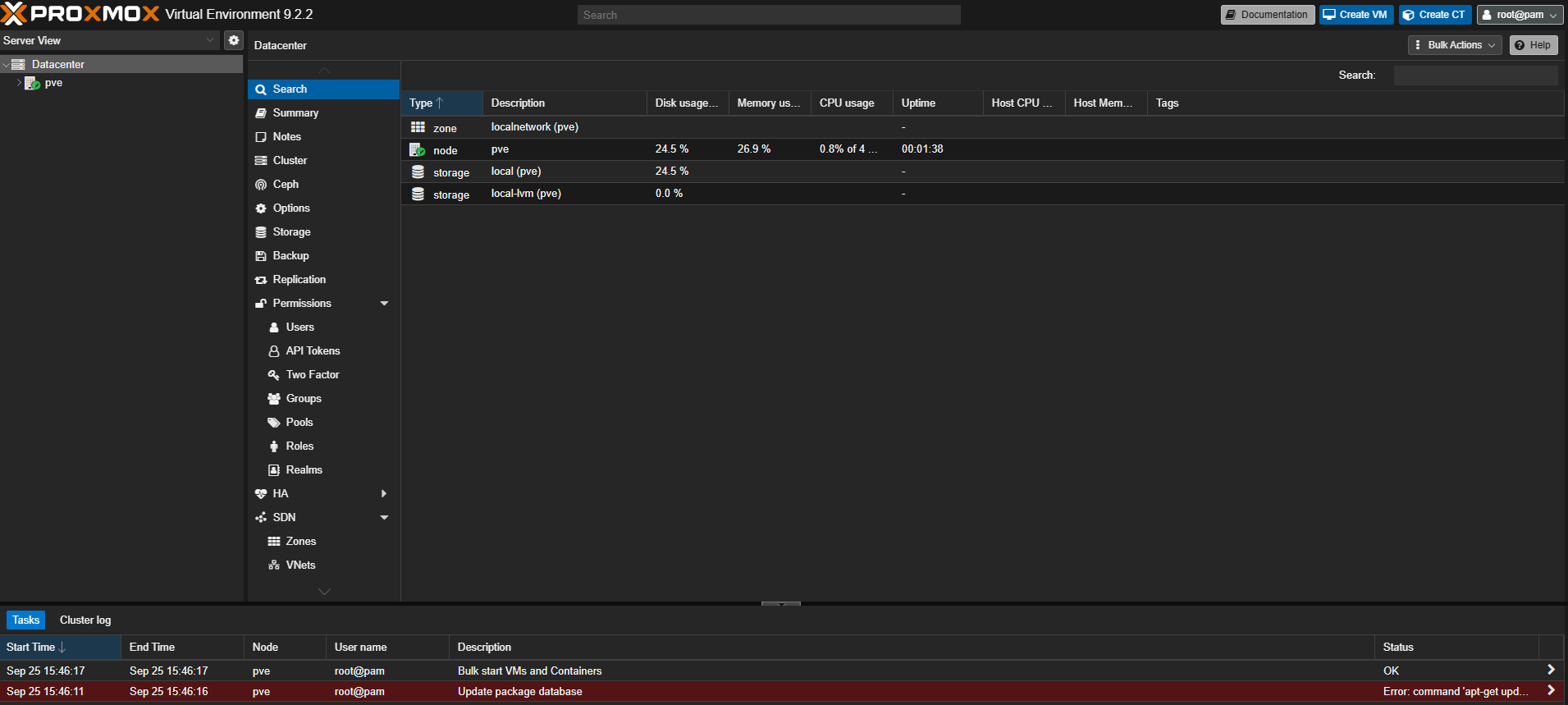
After logging in, you land on the Datacenter view. This is the top-level view of your entire Proxmox environment. The interface is divided into several key areas:
Left Sidebar — Resource Tree:
- Datacenter : The root of your infrastructure
- pve (your node) : Expand to see storage, VMs, and containers
- localnetwork (pve) : SDN zone
- local (pve) : Directory storage for ISOs, templates, backups
- local-lvm (pve) : LVM-thin storage for VM disks
- pve (your node) : Expand to see storage, VMs, and containers
Center Panel — Tabs and Content: Depending on what you select in the left sidebar, the center panel shows different tabs. At the Datacenter level, you will see:
- Search : Search across all nodes, VMs, containers, and storage
- Summary : Cluster-wide health overview
- Notes / Cluster / Ceph / Options / Storage / Backup / Replication : Datacenter-level configuration
Top Right — Action Buttons:
- Create VM : Launch the VM creation wizard
- Create CT : Launch the container creation wizard
- Documentation / Help : Quick access to the Proxmox docs
Bottom Panel : Task Log: Shows recent tasks (VM starts, backups, etc.) with their status.
3.2 The Datacenter Summary
Click Summary in the center panel to get a high-level overview of your cluster’s health. This page shows:
- Health : Overall status of the cluster (green checkmark = healthy)
- Guests : Count of running/stopped VMs and LXC Containers
- Resources : Real-time gauges for CPU, Memory, and Storage usage
- Nodes : Table of all cluster nodes with their IP, CPU usage, memory usage, and uptime
- Subscriptions : Shows whether you have an active enterprise subscription (community use is free)
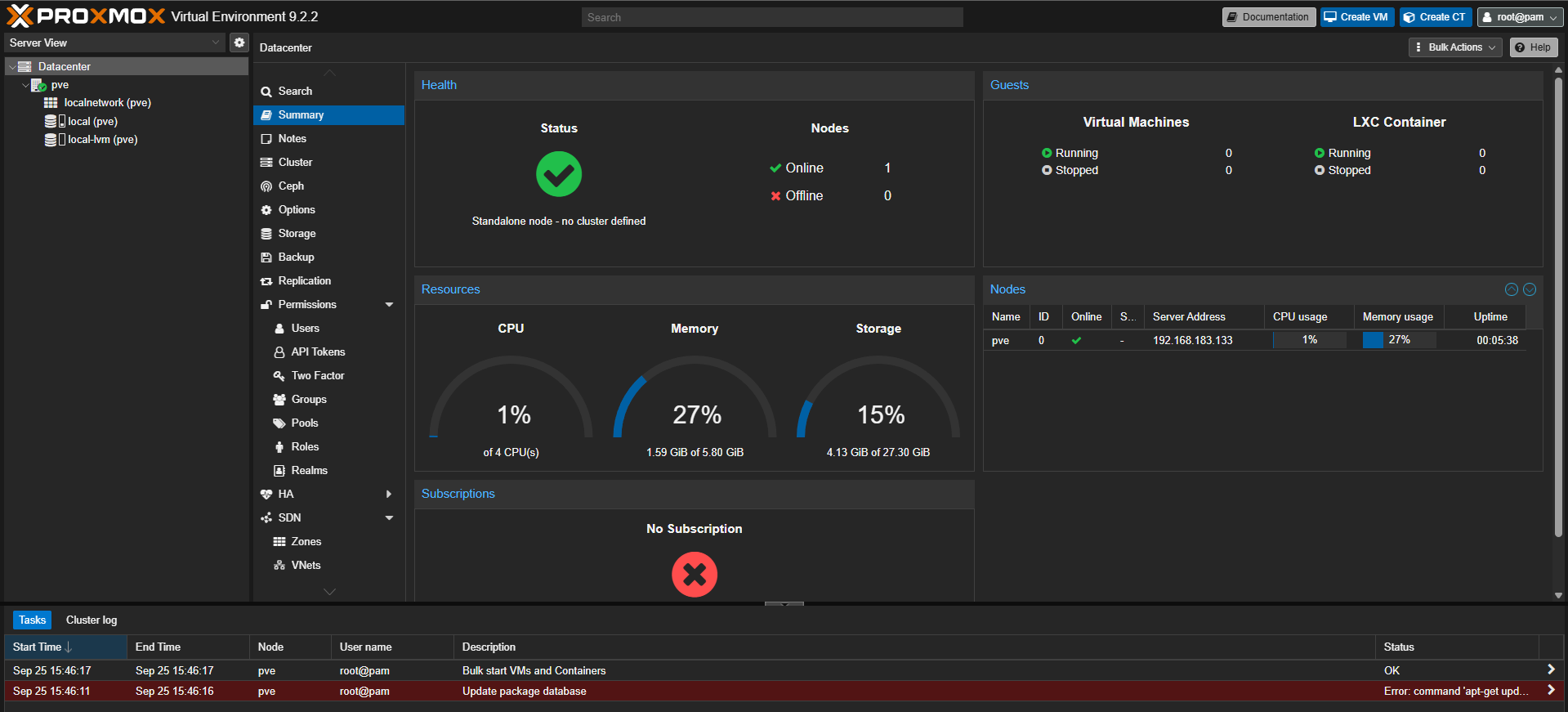
Summary: The Proxmox web dashboard is divided into four main areas: the left sidebar contains the resource tree (Datacenter → Nodes → VMs/CTs/Storage), the center panel displays context-sensitive tabs and content, the top-right corner provides quick-action buttons for creating VMs and CTs, and the bottom panel shows a real-time task log. The Datacenter Summary page provides an at-a-glance view of cluster health, guest counts, resource usage (CPU, Memory, Storage), and node status.
4. Creating a Virtual Machine (VM)
Virtual Machines in Proxmox VE use KVM/QEMU under the hood, providing full hardware virtualization. Each VM gets its own virtual hardware (CPU, RAM, disk, NIC) and can run any operating system — Linux, Windows, BSD, etc.
4.1 Upload an ISO Image
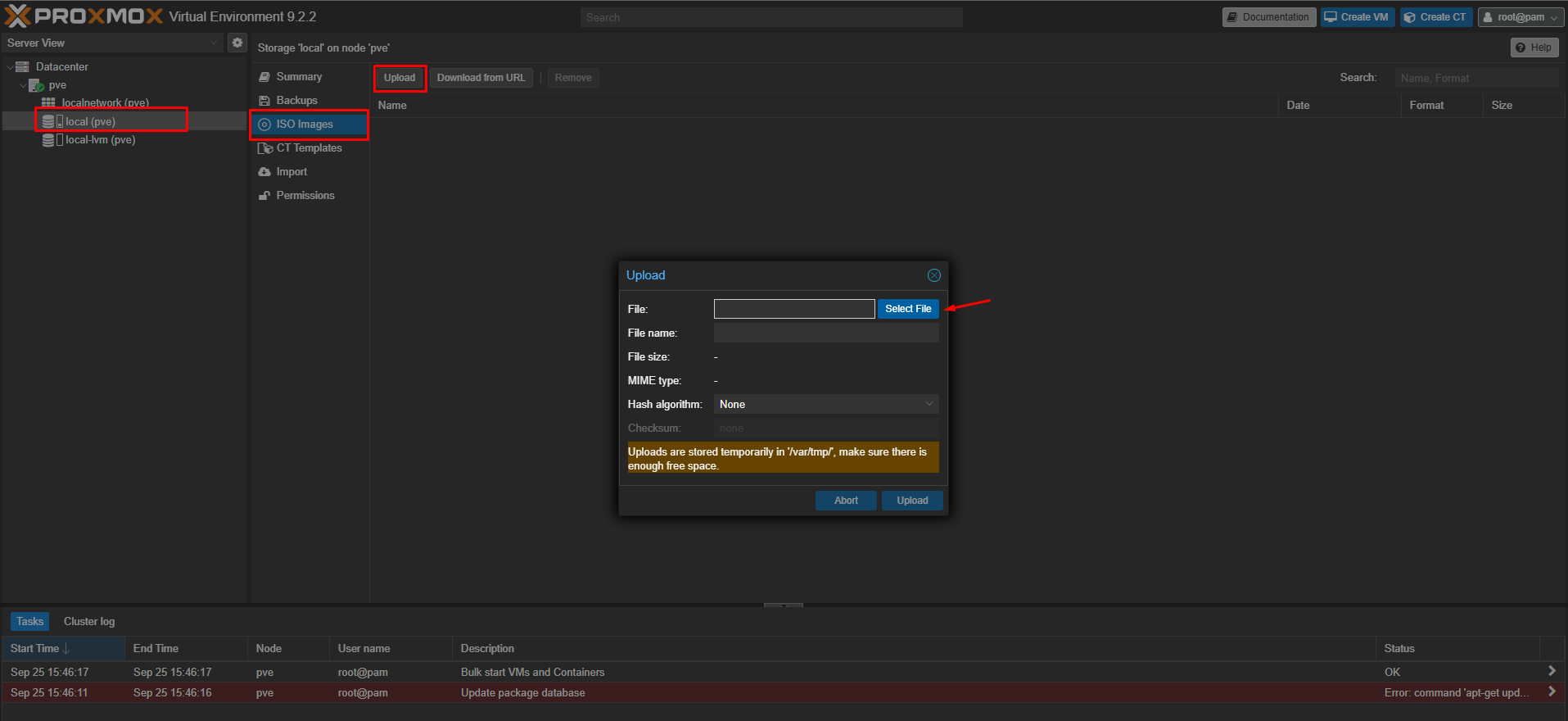
Before creating a VM, you need an OS installation ISO. Here is how to upload one:
- In the left sidebar, expand your node (pve) and click on local (pve) storage.
- In the center panel, click ISO Images.
- Click the Upload button at the top.
- In the upload dialog, click Select File, browse to your ISO file (e.g.,
ubuntu-24.04.5-live-server-amd64.iso), and click Upload.
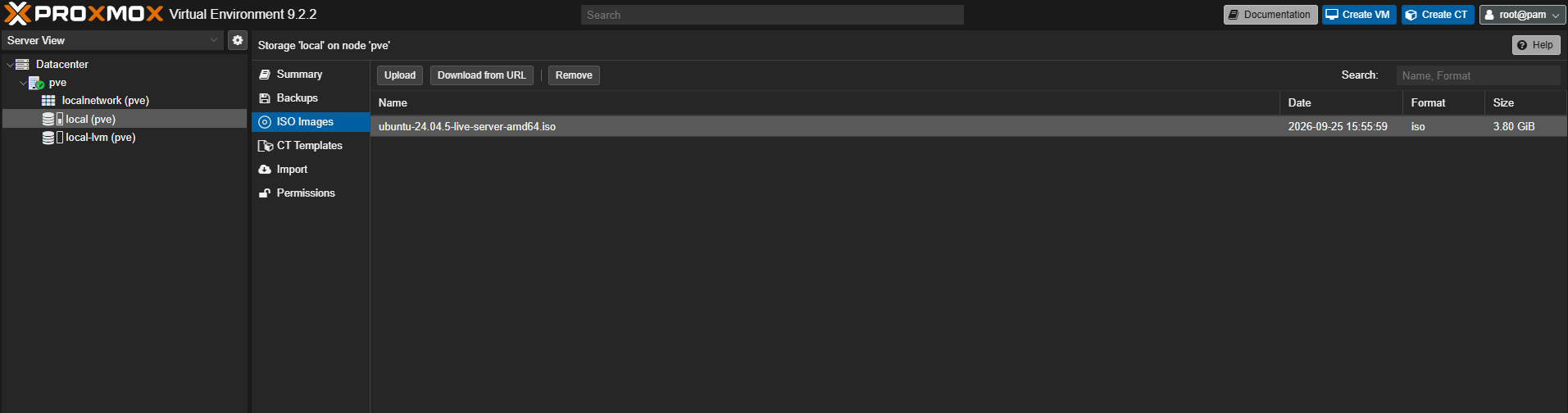
Once the upload completes, you will see the ISO listed under ISO Images, ready to be used for VM creation.
4.2 Create the VM
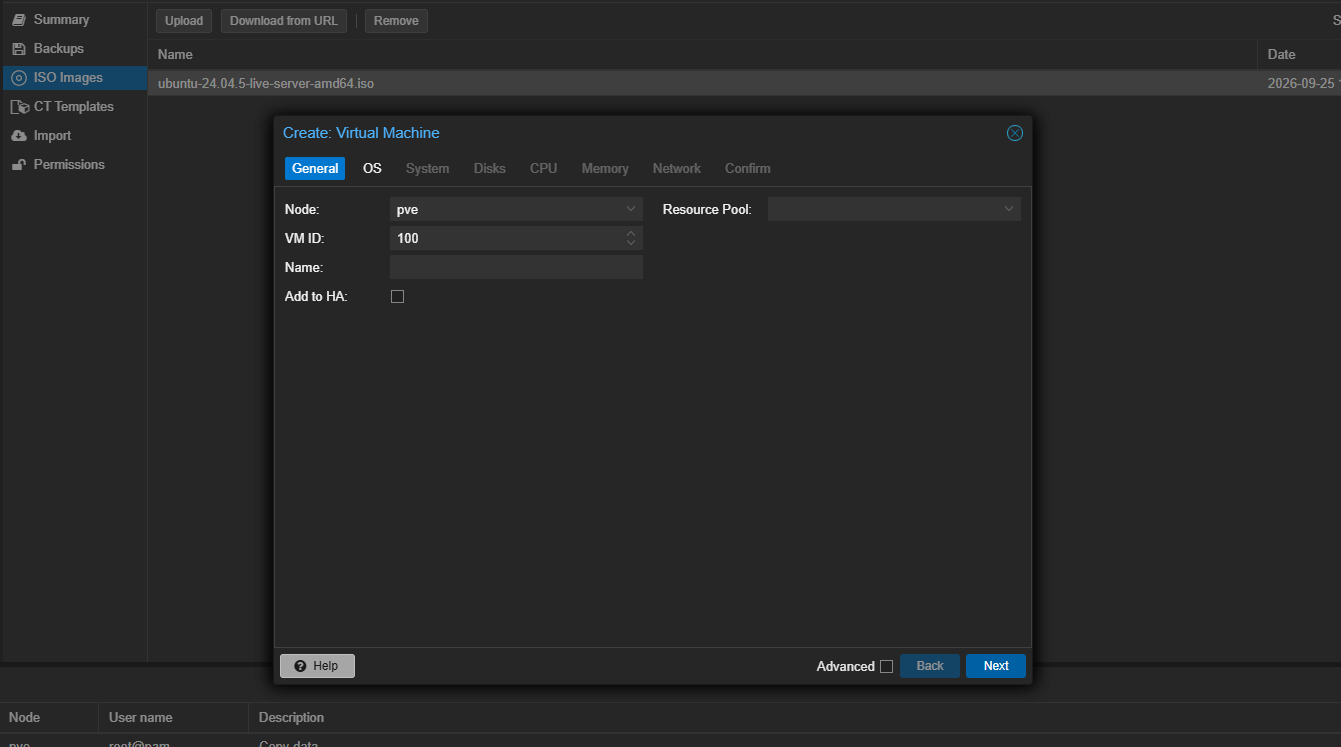
Click the Create VM button in the top-right corner of the dashboard. The VM creation wizard walks you through several tabs:
General Tab:
- Node: Select your Proxmox node (e.g.,
pve). - VM ID: An auto-assigned numeric ID (e.g.,
100). You can change it. - Name: Give your VM a descriptive name.
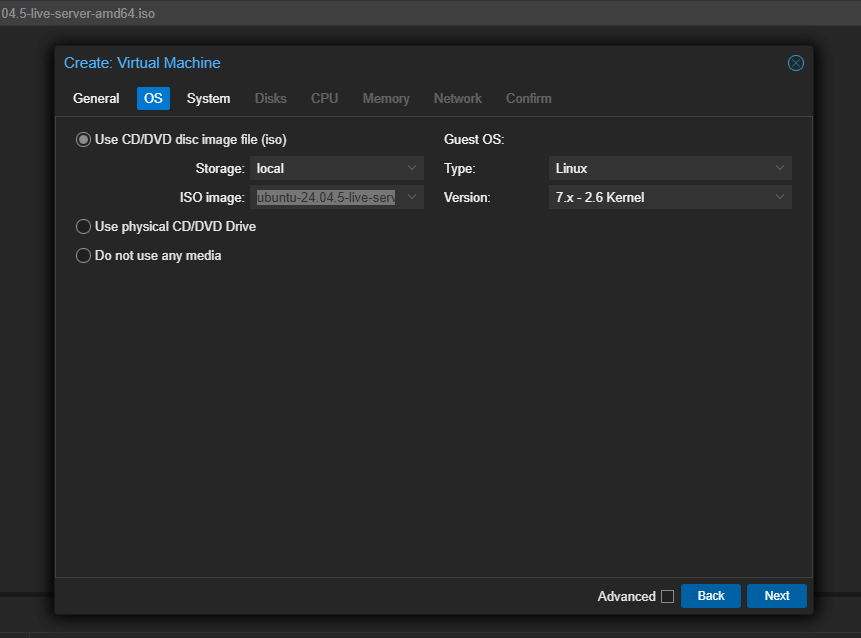
OS Tab:
- Select “Use CD/DVD disc image file (iso)”.
- Storage: Choose
local(where you uploaded the ISO). - ISO image: Select your uploaded ISO (e.g.,
ubuntu-24.04.5-live-server-amd64.iso). - Guest OS Type: Select
Linux. - Version: Choose the appropriate kernel version.
System / Disks / CPU / Memory / Network Tabs:
Continue through the remaining tabs to configure:
| Tab | Key Settings |
|---|---|
| System | Leave defaults (BIOS: SeaBIOS, SCSI Controller: VirtIO SCSI single). Enable Qemu Agent if you plan to install it. |
| Disks | Set the disk size (e.g., 20 GB). Storage: local-lvm. Bus/Device: SCSI. Enable IO thread for better performance. |
| CPU | Set the number of cores (e.g., 2). CPU type: x86-64-v2-AES or host for best performance. |
| Memory | Set the RAM in MiB (e.g., 2048 for 2 GB). |
| Network | Bridge: vmbr0. Model: VirtIO (paravirtualized) for best performance. Enable Firewall. |
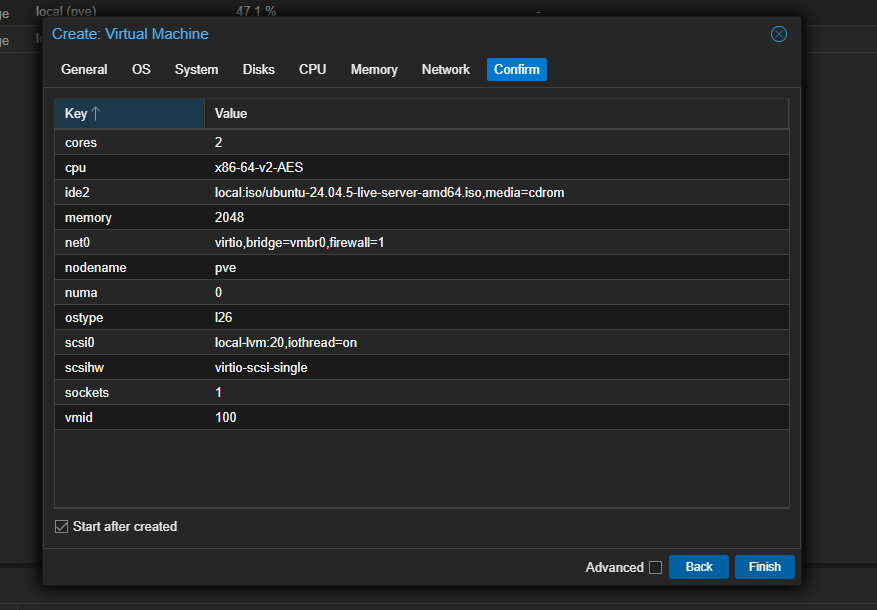
Confirm Tab:
The final tab shows a summary of all your VM settings. Review them and check “Start after created” if you want the VM to boot immediately. Click Finish to create the VM.
4.3 VM Running — Summary and Console
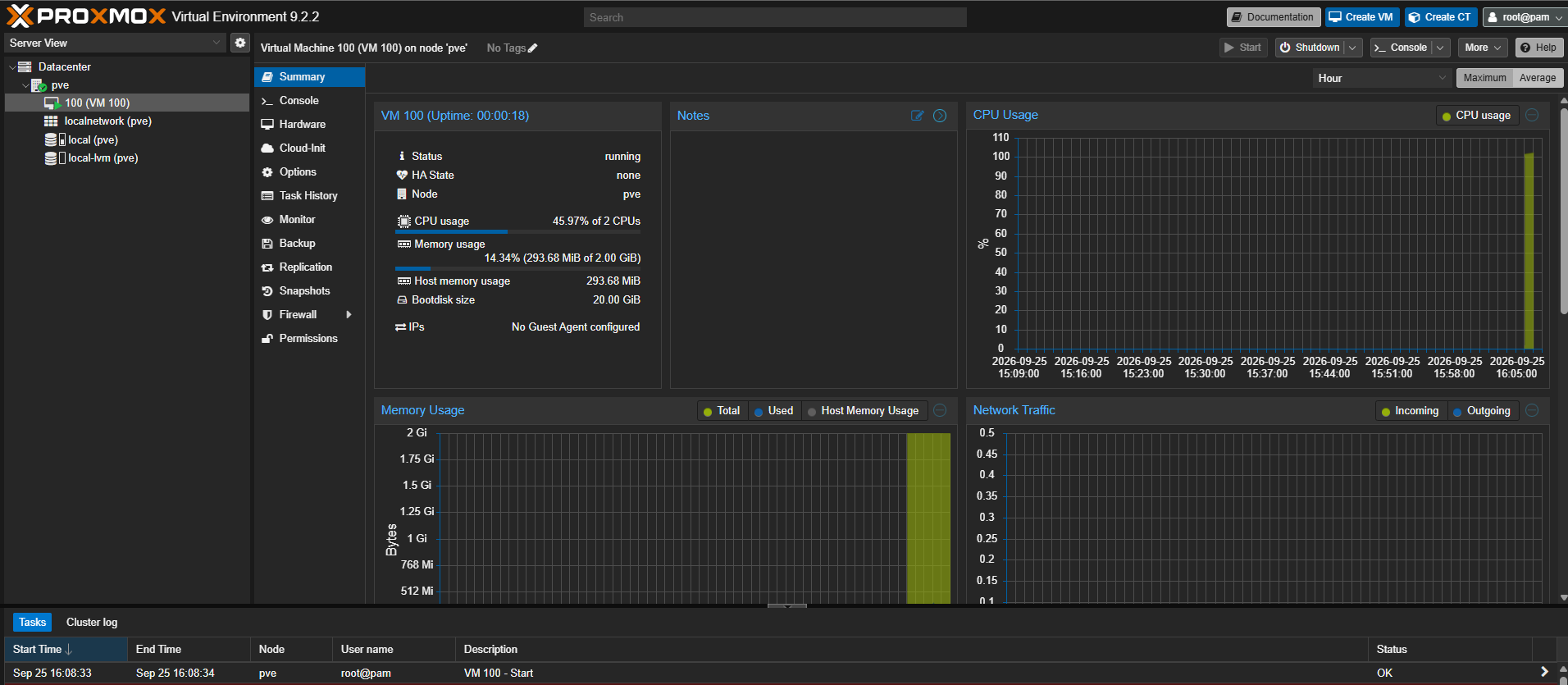
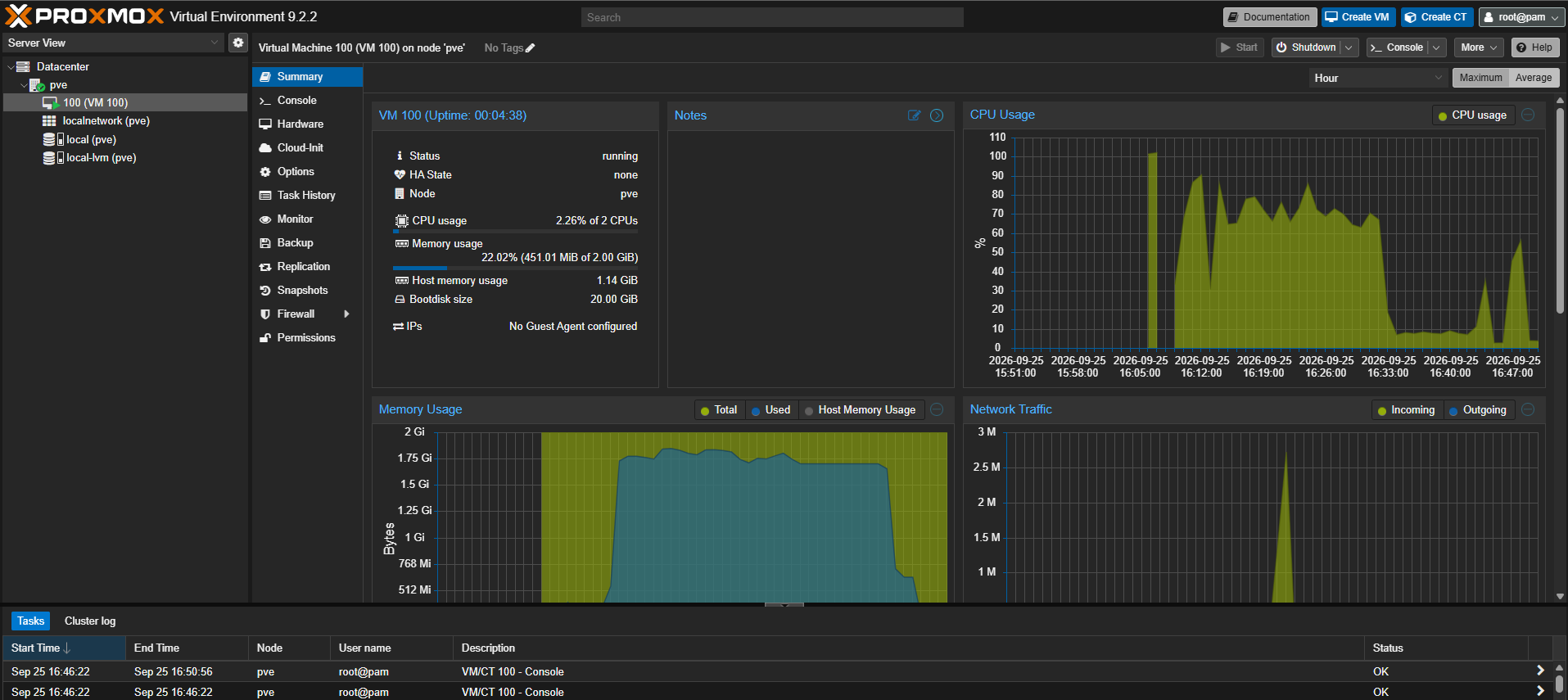
Once the VM is created and started, you can select it from the left sidebar (e.g., 100 (VM 100)) to see its Summary page. Here you will find real-time metrics:
- Status: running
- CPU / Memory Usage: Live usage statistics
- Uptime: How long the VM has been running
- CPU Usage graph, Memory Usage graph, Network Traffic graph — Historical performance data
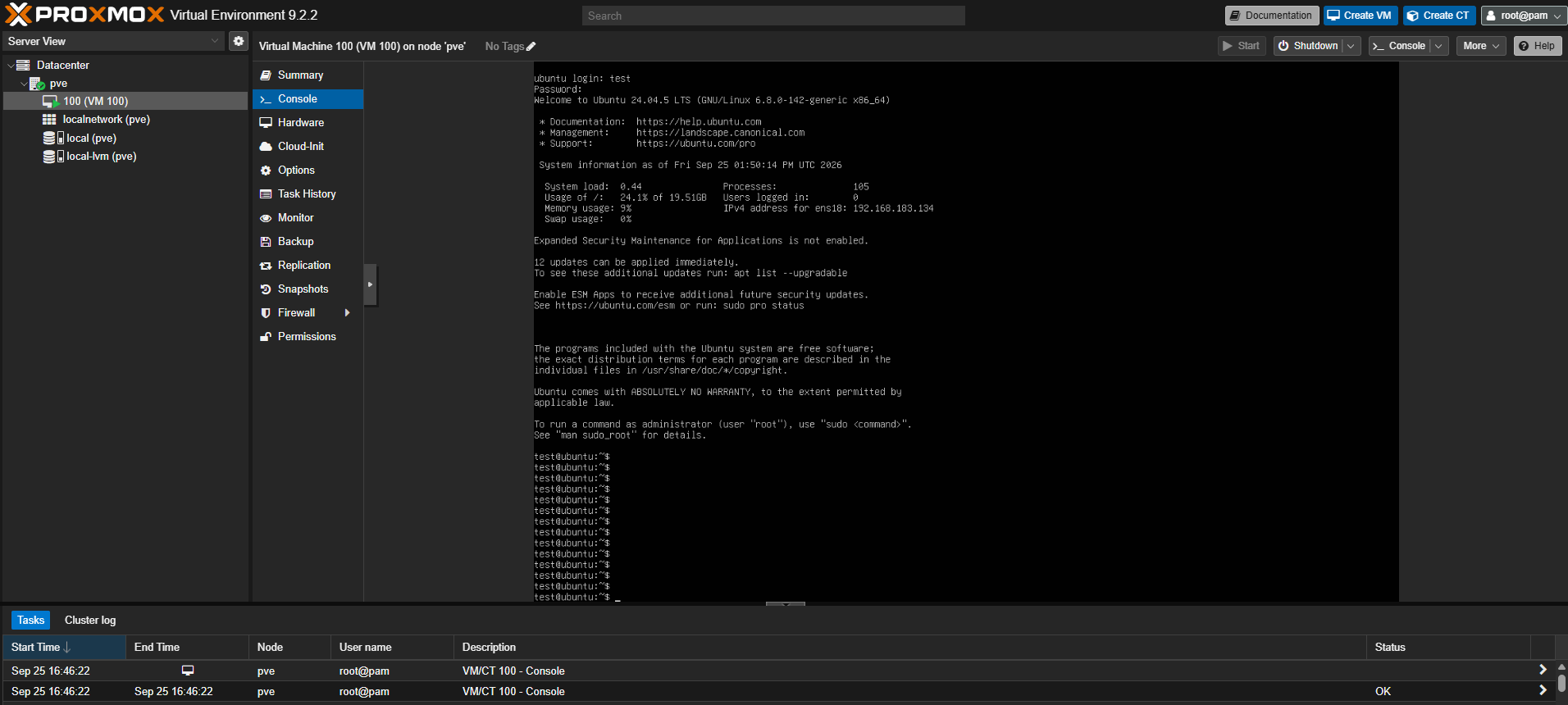
Click Console in the left menu to access the VM’s display. This opens a noVNC console directly in your browser where you can interact with the VM just like sitting in front of a monitor. Here you can complete the OS installation and log in.
After the OS installation is complete and the VM has been running for a while, you can observe the usage graphs filling in with real data on the Summary page:
Tip: Install the QEMU Guest Agent inside the VM (
sudo apt install qemu-guest-agenton Ubuntu/Debian) to enable features like proper shutdown from the Proxmox UI, IP address reporting, and filesystem freeze for consistent backups.
Summary: Creating a VM in Proxmox VE involves two main steps: first, uploading an OS installation ISO to local storage, and second, walking through the Create VM wizard which covers General settings (node, ID, name), OS selection (ISO image and guest type), System configuration, Disk allocation, CPU and Memory sizing, and Network setup. After creation, the VM appears in the left sidebar where you can monitor its real-time resource usage on the Summary page and interact with it directly through the built-in noVNC Console.
5. Creating a Container (CT)
5.1 What are LXC Containers?
Linux Containers (LXC) in Proxmox VE are a fundamentally different approach to virtualization compared to KVM virtual machines. While a VM emulates an entire computer complete with virtual CPU, BIOS, disk controllers, and network cards, an LXC container is simply an isolated group of processes running on the host’s own Linux kernel.
LXC achieves isolation using two core Linux kernel features:
Namespaces — Provide isolation for processes, networking, filesystems, users, and hostnames. Each container gets its own PID namespace (so its processes start from PID 1), its own network namespace (with its own
eth0, IP address, and routing table), and its own mount namespace (so it sees its own root filesystem). To processes inside the container, it looks and feels like a standalone Linux system.Cgroups (Control Groups) — Limit and account for resource usage. Cgroups allow Proxmox to enforce CPU limits, memory caps, I/O bandwidth throttling, and more on a per-container basis. This prevents any single container from monopolizing host resources.
The result is that containers provide near-native performance with minimal overhead.
5.2 Download a CT Template
Unlike VMs that boot from ISO images, containers are created from pre-built templates compressed root filesystems of various Linux distributions. Proxmox provides an online repository with templates for Ubuntu, Debian, Alpine, CentOS, Fedora, Arch Linux, and more. You can either download an official template from the Proxmox repository or upload your own custom CT template.
Here is how to download one:
- In the left sidebar, expand your node (pve) and click on local (pve) storage.
- In the center panel, click CT Templates.
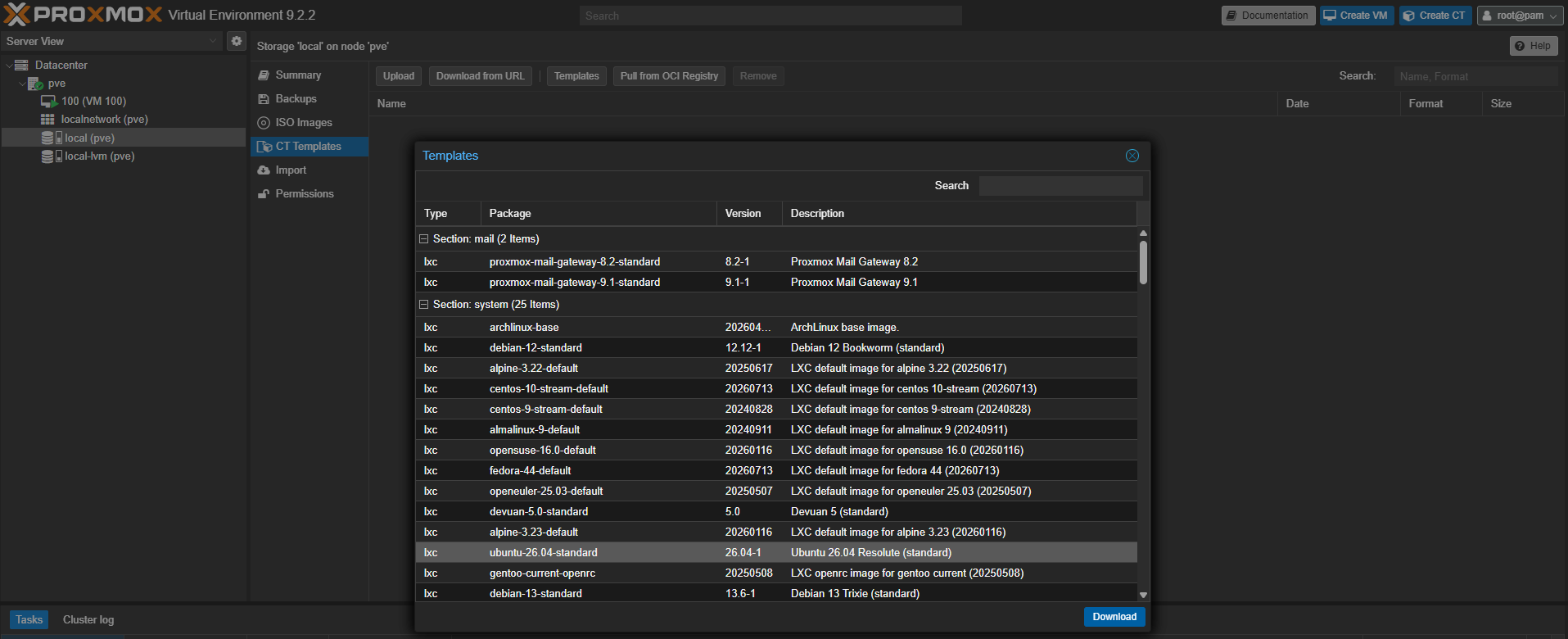
- Click the Templates button at the top.
- A dialog will appear listing all available templates, organized by sections (mail, system, etc.).
- Browse the list, select a template (e.g.,
ubuntu-26.04-standard), and click Download.
The template list includes a wide variety of distributions:
| Distribution | Template Name | Notes |
|---|---|---|
| Ubuntu 26.04 | ubuntu-26.04-standard | Latest LTS, great for general use |
| Debian 13 | debian-13-standard | Stable, minimal |
| Alpine 3.23 | alpine-3.23-default | Ultra-minimal (~5 MB), great for microservices |
| Fedora 44 | fedora-44-default | Latest packages, SELinux support |
| Arch Linux | archlinux-base | Rolling release |
5.4 Create the Container
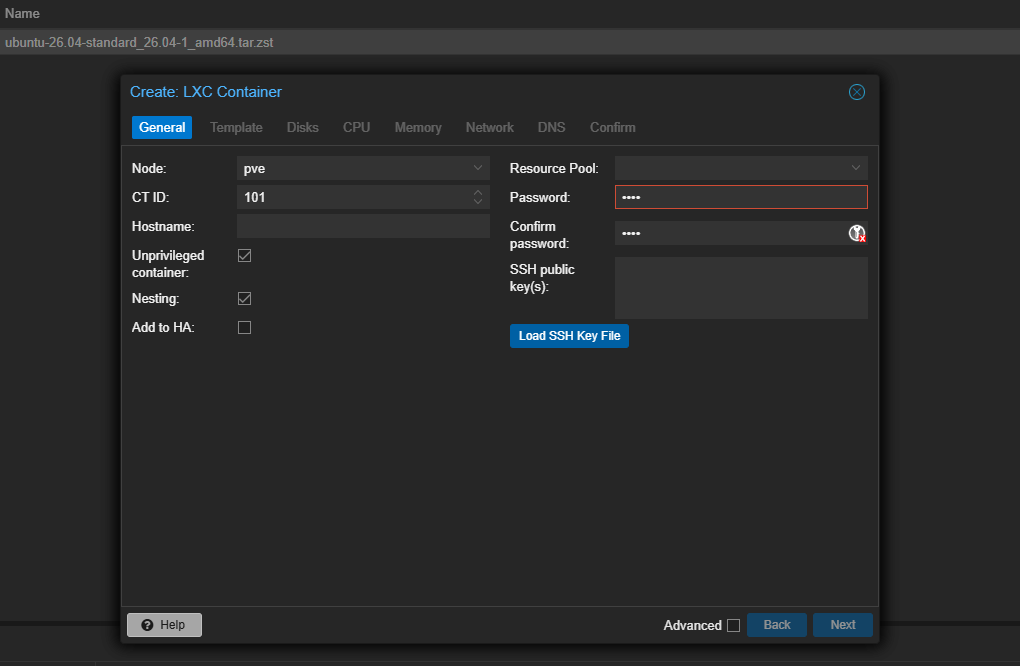
Click the Create CT button in the top-right corner of the dashboard. The container creation wizard walks you through several tabs:
General Tab:
- Node: Select your Proxmox node (e.g.,
pve). - CT ID: An auto-assigned numeric ID (e.g.,
101). You can change it. - Hostname: Give the container a descriptive name.
- Password: Set the root password for the container.
- SSH public key(s): Optionally paste your public key for passwordless SSH access.
Template Tab:
- Storage:
local(where you downloaded the template). - Template: Select the template you downloaded (e.g.,
ubuntu-26.04-standard_26.04-1_amd64.tar.zst).
Disks / CPU / Memory / Network / DNS Tabs:
Continue through the remaining tabs to configure the container:
| Tab | Key Settings |
|---|---|
| Disks | Root disk size (e.g., 2 GB — containers are small!). Storage: local-lvm. |
| CPU | Number of cores (e.g., 1). This is a limit, not a dedicated allocation. |
| Memory | RAM in MiB (e.g., 512). Swap in MiB (e.g., 512). |
| Network | Name: eth0. Bridge: vmbr0. IPv4: DHCP or Static IP. |
| DNS | Leave as host settings or set custom DNS servers. |
Tip: Containers are extremely lightweight. A basic Ubuntu container will run comfortably with just 1 CPU core, 512 MB RAM, and 2 GB disk. You can always increase resources later without downtime.
Confirm Tab:
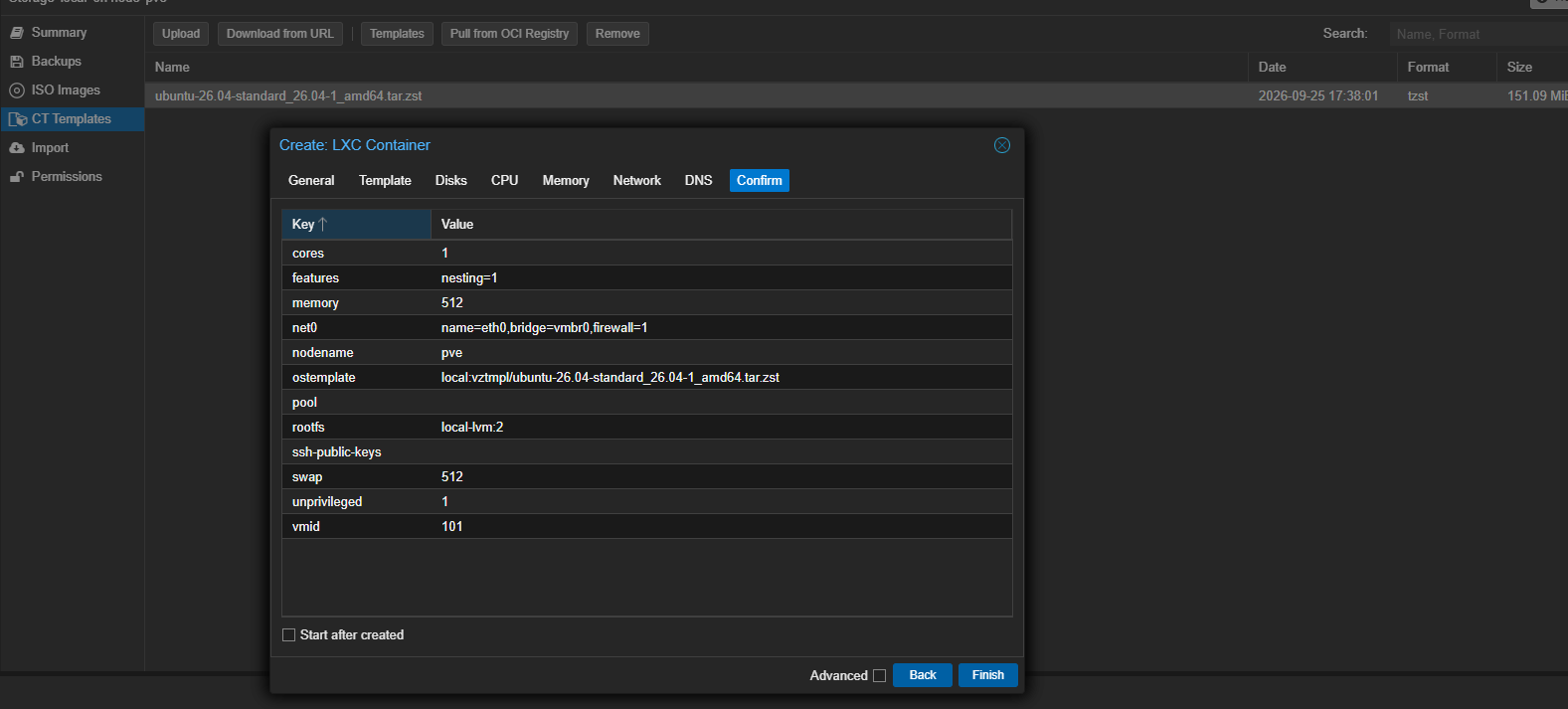
The final tab shows a summary of all your container settings. Review them carefully:
- cores: 1
- memory: 512 MiB
- swap: 512 MiB
- rootfs: local-lvm:2 (2 GB disk)
- ostemplate: ubuntu-26.04-standard
- unprivileged: 1 (yes)
- nesting: enabled
Check “Start after created” if you want the container to start immediately. Click Finish to create the container.
5.6 Container Running — Summary and Console
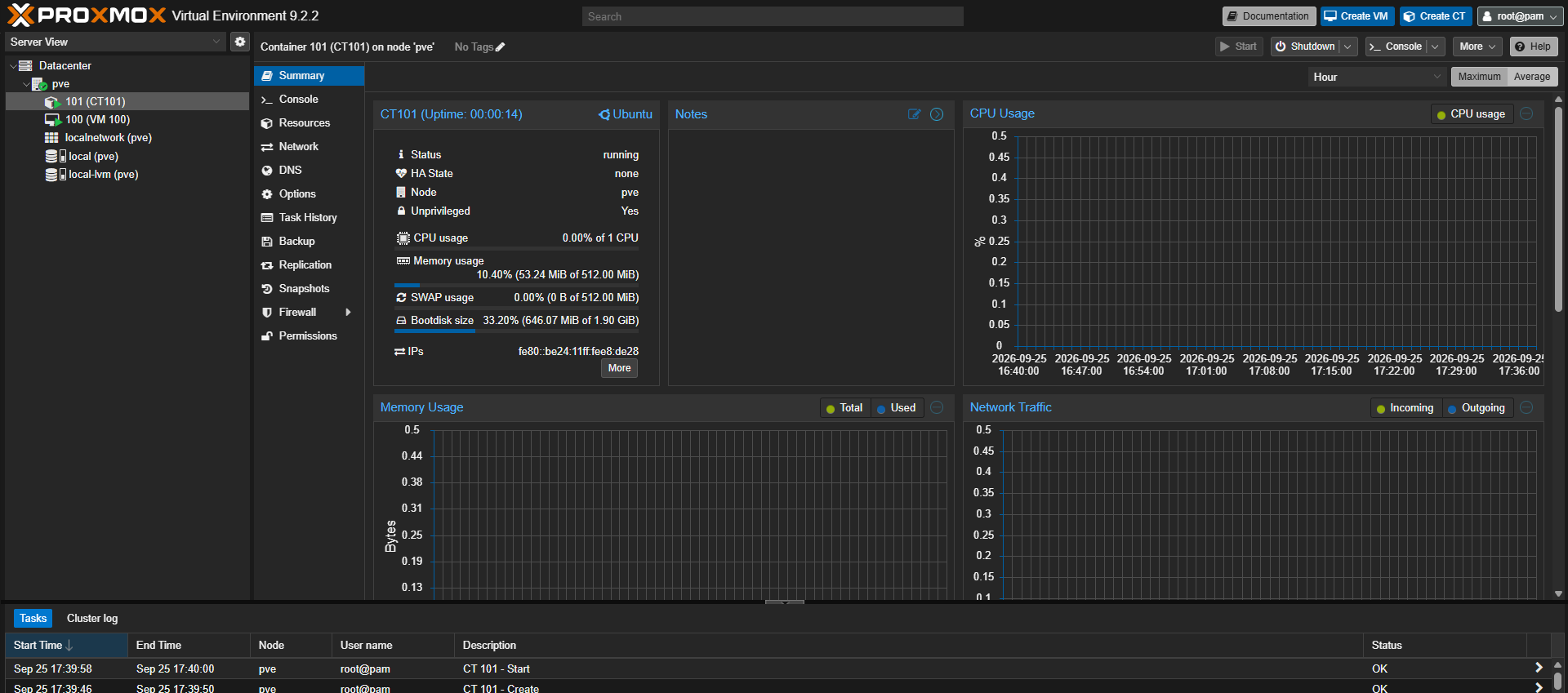
Once the container is created and started, select it from the left sidebar (e.g., 101 (CT101)) to see its Summary page. The layout is similar to a VM’s summary but with container-specific details:
- Status: running
- Unprivileged: Yes
- CPU / Memory / SWAP usage: Live usage statistics
- Bootdisk size: How much disk space is allocated and used
- IPs: The container’s network addresses
- CPU Usage graph, Memory Usage graph, Network Traffic graph — Historical performance data
Notice how minimal the resource usage is — the container uses only ~53 MiB of RAM out of 512 MiB, and the CPU is virtually idle. This is the power of containers: near-zero overhead for running Linux services.
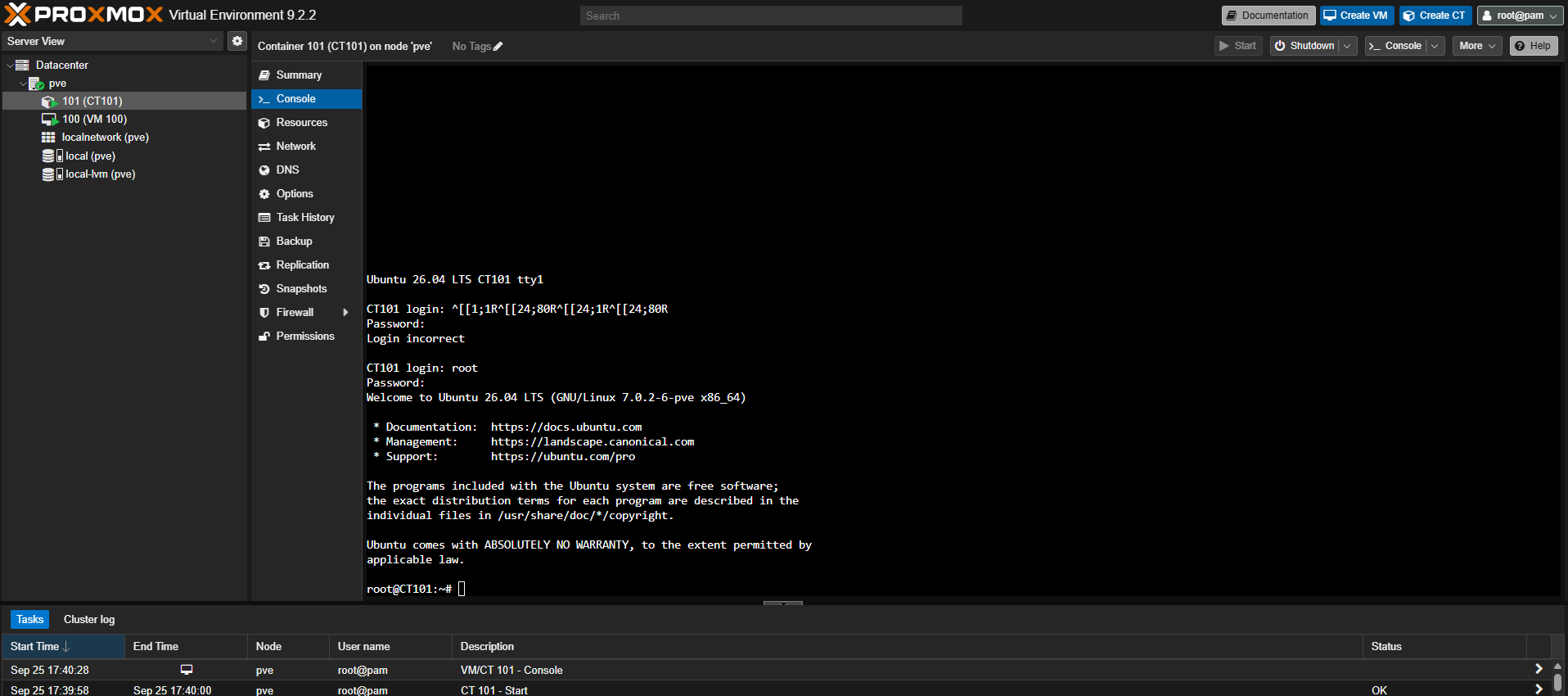
Click Console in the left menu to open a shell inside the container. Unlike VMs, there is no noVNC graphical console — containers provide a direct terminal since they do not have a display or desktop.
Log in with root and the password you set during creation. You will be greeted with a standard Ubuntu login prompt and have full root access inside the container.
Key Insight: Containers are ideal for running services like web servers (nginx, Apache), databases (PostgreSQL, MySQL, MariaDB), DNS resolvers (Pi-hole, AdGuard Home), monitoring stacks (Grafana, Prometheus), reverse proxies (Traefik, Caddy), and any Linux-based service where you do not need full OS isolation or Windows support.
Summary: Creating a container in Proxmox VE involves downloading a pre-built template (a compressed root filesystem) from the Proxmox repository, then walking through the Create CT wizard which covers General settings (node, ID, hostname, password, unprivileged mode), Template selection, Disk allocation, CPU and Memory limits, and Network configuration. Containers are fundamentally different from VMs — they share the host’s kernel and use Linux namespaces and cgroups for isolation, resulting in near-instant boot times (1–2 seconds), minimal RAM usage (~53 MiB for an idle Ubuntu container), and near-native performance. Always prefer unprivileged containers for security. Use containers for Linux-based services that do not require a custom kernel, and use VMs when you need full OS isolation or Windows support.
6. Conclusion
In this guide, we covered the complete workflow for getting started with Proxmox VE:
| Step | What We Did |
|---|---|
| Installation | Booted from ISO, configured disk, password, network, and installed Proxmox VE |
| Dashboard | Explored the Datacenter view, Summary page, resource tree, and task log |
| Creating a VM | Uploaded an ISO, walked through the VM wizard, and booted an Ubuntu VM |
| Creating a CT | Downloaded a template and created a lightweight Linux container |
Proxmox VE is an incredibly versatile platform. From here, you can explore:
- Clustering : Join multiple Proxmox nodes into a high-availability cluster
- Backups : Schedule automated VM and CT backups with Proxmox Backup Server
- ZFS Storage : Use ZFS for snapshots, replication, and data integrity
- Cloud-Init : Automate VM provisioning with cloud-init templates
- Firewalling : Configure per-VM and per-CT firewall rules from the web UI
- SDN : Set up Software-Defined Networking for complex network topologies
By understanding the fundamentals of Proxmox VE’s dual virtualization approach KVM for full machines and LXC for lightweight containers, you now have the knowledge to make informed decisions about which technology to use for each workload. The key takeaway is that Proxmox VE gives you enterprise-grade virtualization tooling completely free, with both VM and container support managed from a single, unified interface.